
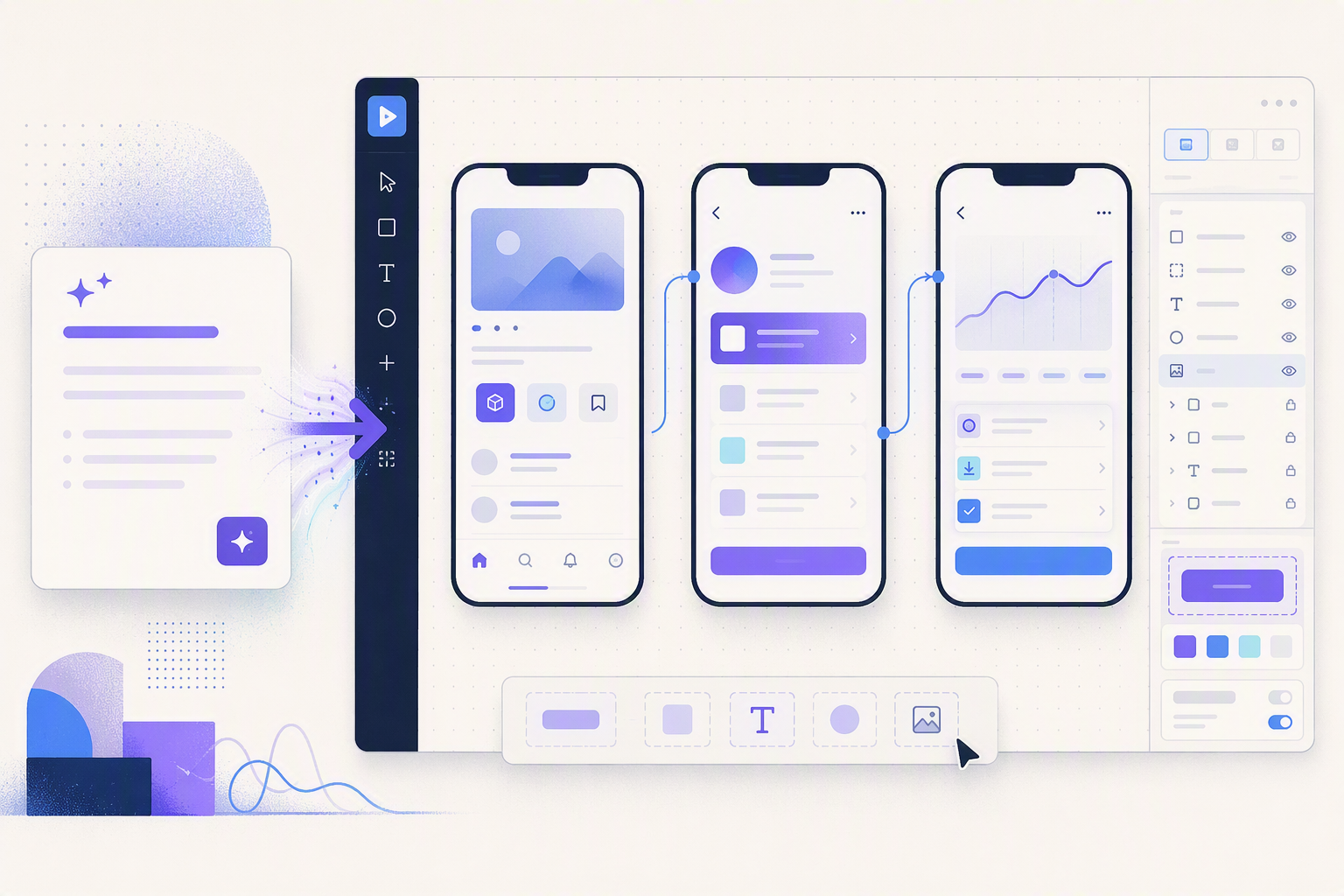
%20by%20%E2%80%9EPablo%20Stanley%E2%80%9D%2C%20licensed%20under%20%E2%80%9ECC0%201.0%E2%80%9D%20(https%3A%2F%2Fcreativecommons.org%2Fpublicdomain%2Fzero%2F1.0%2F)%3C%2Fdc%3Arights%3E%3C%2Frdf%3ADescription%3E%3C%2Frdf%3ARDF%3E%3C%2Fmetadata%3E%3Cmask%20id%3D%22viewboxMask%22%3E%3Crect%20width%3D%22704%22%20height%3D%22704%22%20rx%3D%220%22%20ry%3D%220%22%20x%3D%220%22%20y%3D%220%22%20fill%3D%22%23fff%22%20%2F%3E%3C%2Fmask%3E%3Cg%20mask%3D%22url(%23viewboxMask)%22%3E%3Cg%20fill-rule%3D%22evenodd%22%20clip-rule%3D%22evenodd%22%3E%3Cpath%20d%3D%22M705.3%201074a2351.1%202351.1%200%200%201-15.6-101c-1-7.7-2.5-16.4%202.7-22%207.3-8%2014-14.8%2014.8-26.2.8-10.7-2.8-22.4-5-32.8a809.4%20809.4%200%200%200-17.3-64.7c-6.6-21.7-13.9-43.2-21.3-64.6-6.9-20-13.5-40.3-22.5-59.5-17-36.5-46-63.5-81.6-81.6-9-4.5-27-20.5-36.3-24-8.5-3.4-8.5%206.3-16.9%202.6-6.7-2.9-13-6.7-16.7-13.2-4-7-14.3-16.9-15.9-25-3.3-17.4.3-32.2-12-45.3a90%2090%200%200%200-41.1-23.8c-33.7-9.3-78.5-2.8-98.8%2028.5-9.7%2014.9-13%2033-26.2%2045.1-11.4%2010.7-8.8%2018-23.6%2023.4-.9.3-23.6-4.5-24.4-4.2-16.2-3.5-31.7%206.2-46.5%2011.8a325.4%20325.4%200%200%200-63%2032.3%20399.2%20399.2%200%200%200-102.3%2098.5%20482.5%20482.5%200%200%200-76.4%20161c-1.7%206.4-3.5%2013-1.5%2019.4%201.7%205.3%205.4%209.2%209.8%2012.4%206%204.3%2018%207%2017.7%2015.7-.1%206.6-2.4%2013.5-3.5%2020-1.3%207.7-2.3%2015.5-3.4%2023.2-4.8%2035.4-8.6%2071-10.3%20106.6a920%20920%200%200%200-.5%20106c.1%202.3.8%204.5%202%206.2-1%20.4-1.2%202.4.1%202.7l2.7.5a12%2012%200%200%200%207%202.4l5.5.2c19.3%204%2038.6%207.9%2058.1%2010.8%2023.8%203.5%2047.6%206.3%2071.5%208.7%2049.2%204.8%2098%203.2%20147.1.6a1877%201877%200%200%201%20147.4-2c49.2%201.4%2098.4%203.5%20147.6%204.4%2055%201%20110-.5%20164.8-5%207.5-.5%2012.2-6.5%2010.7-14-8.9-44.7-19-89.1-27-134Z%22%20fill%3D%22%23694d3d%22%2F%3E%3Cpath%20d%3D%22m201%20597.5%201.2-.4c14.5-5.7%2029.6-14.8%2045.4-11.4.5-.2%2010.8%201.9%2017.9%203.2l-6.7%207L247%20598c40.7%2067.1%2088.8%20100.7%20144.3%20100.7%2055.5%200%2097.7-33.6%20126.4-100.7l4-1c.4%200%201%20.2%201.5.4%209.3%203.6%2027.4%2019.6%2036.3%2024.1%2035.6%2018%2064.5%2045%2081.6%2081.6%208.7%2018.6%2015.2%2038%2021.8%2057.5l.7%202c7.4%2021.4%2014.7%2043%2021.3%2064.6%206.3%2020.4%2012%2041%2016.6%2061.8l.7%202.9c2.2%2010.4%205.8%2022%205%2032.8a29%2029%200%200%201-3%2010.7l-80.4%2029%2038.4%20261.3c-35.1%201.5-70.3%202-105.5%201.3-49.2-.9-98.4-3-147.6-4.3-47.7-1.2-95.3-.7-143%201.7l-12%20.6a946.3%20946.3%200%200%201-139.5-1l-3.1-.3v-38.3l16.3-212.9-83-15.6-81.3-39.5a21.7%2021.7%200%200%201-5.6-8.8c-1.9-6-.5-12%201-18l.5-1.3a492.8%20492.8%200%200%201%2076.4-161A399.3%20399.3%200%200%201%20138%20629.7c19.8-13%2040.9-23.9%2063-32.3Z%22%20fill%3D%22%23ffcf77%22%2F%3E%3Cpath%20d%3D%22M232.2%20584.6c5.1-.3%2010.3.6%2015.4%201%20.4.1.6.8%200%20.9-9%201.9-18%204.5-26.9%207.1l-3.8%201.2c-10%203-19.8%206-29.6%2010-19.4%207.9-37.8%2018.5-54.8%2030.8C67.2%20682.8%2020%20754.3-9.9%20828.3a526%20526%200%200%200-24.3%2077c-.4%201.6-2%205.4-1%207%20.7%201.3%203.6%202.1%205%202.9l4.5%202.3%2025.2%2012.9%202.3%201.1c38%2018.6%2078.4%2034.4%20121%2035.5l.4-3.7a342%20342%200%200%201%209.9-60c.3-1%201.6-.6%201.7.3%203%2023.1%202%2046.4%201%2069.7-1.8%2041-4.3%2082.2-6.5%20123.3-1.2%2020.6-2.6%2041-3.9%2061.7-1.3%2020.5-1.7%2041.6-4.7%2062-.6%204.6-6%207-10%206.6-4.4-.5-7.9-4.5-8-9%200-11.9%201.5-24%202.4-35.8l2.5-33.8c3.1-41.1%206.8-82.2%2010.2-123.3a4771%204771%200%200%201%203.8-43.7C76.4%20979.8%2034.2%20963-6.1%20943.5c-.6%2013.2-2%2026.5-3.4%2039.6-3.8%2036.8-7.1%2073.6-9.6%20110.5a2254.2%202254.2%200%200%200-4.2%2092.7l-.2%207c0%204.4-.5%208.5-4.3%2011.7-3.7%203.3-8.9%203.5-12.6%200-5-4.6-4.2-10.9-4-17.1a1675.6%201675.6%200%200%201%201.8-47.2%201321%201321%200%200%201%2010.5-109.5l2-14c3.5-26%207.5-52.7%2015.5-77.9-3.1-1.5-6.2-3-9.3-4.7-5.5-2.7-11.2-5.4-16.6-8.4-4.2-2.5-7.9-5.8-9-10.8-1.4-5.5.6-11.5%202-16.9v-.4a502%20502%200%200%201%2026.6-80%20523.2%20523.2%200%200%201%2067.8-117%20353.8%20353.8%200%200%201%2088.7-83.3%20239%20239%200%200%201%2053.8-25.7%20142.6%20142.6%200%200%201%2042.8-7.5Zm90.1-66c6-6.5%2018.1.2%2015.2%208.8a108.2%20108.2%200%200%201-34.7%2052A79.4%2079.4%200%200%201%20247%20598l1.7%202.4a321.1%20321.1%200%200%200%2046.1%2052.6c36%2031.2%2084.8%2048%20132%2036%2037.1-9.4%2069.8-38.8%2079.4-76.2-1.3.6-3%20.9-4.8.5-7.7-1.7-15.3-9.8-20.3-15.6-5.3-6.3-9.5-13-12.6-20.7-5.6-14-7.4-32.1.3-45.7%201-1.7%203-.7%203.3%201l.3%202.5c1.5%2012.7%203.3%2025%209.3%2036.6a76%2076%200%200%200%2018.2%2023.1c2.6%202%205.8%203.6%208.1%206l.5.4c.6-5%204.1-7.3%207.6-7.2%203.3.2%207.3%201.6%208.8%202.3l.1.1a341%20341%200%200%201%2065.1%2042%20259%20259%200%200%201%2088.4%20129c7.5%2025.3%2011.8%2051.4%2016.3%2077.4l2.8%2016c4.2%2023.9%208.9%2048.4%2018.4%2070.7%202.5%205.7.6%2011.1-5.5%2013.4A1493%201493%200%200%201%20688%20953c3.7%2016%206%2032.5%208.7%2048.5%206%2034.1%2013.2%2068%2019.4%20102%203.2%2017.5%206.1%2035%209.3%2052.3l4.7%2025.2%202.4%2013.6.1.7c.5%202.4%201%204.9.4%207.3-.8%202.7-2.9%204.6-4.8%206.6-1.6%201.6-3.8%201.6-5.7.7l-.7-.3c-3.4-1.6-6-3.2-7.3-7-.7-2.5-1-5.2-1.5-7.7a3535.6%203535.6%200%200%201-7.8-43.6l-1.6-9.1c-5.2-31.4-10.2-62.9-12.8-94.5-1-14-2.3-28.1-3.5-42.2l-.9-10.5c-1.1-13.3-2.5-27-2.7-40.5l-4.5%201.6L657%20964c-5.5%202-12.5%206-18.4%205.2-2.9-.3-5-1.2-6.8-2.9%202%2028.8%204.8%2057.4%208.5%2086a1965.7%201965.7%200%200%200%2022%20135c.6%203.2%201.4%206.4%201.9%209.6.5%203.7-.5%205.9-2.5%209-1.7%202.4-5%203.7-7.8%202-3.6-2.3-5.5-4.3-6.5-8.4-1-3.7-1.6-7.6-2.3-11.4a1654.2%201654.2%200%200%201-11.4-65.2c-7.8-52-12.7-104.4-15.2-156.8a1388%201388%200%200%201-1.4-77.8c0-13.3.5-26.6%201.4-39.9%201-13.4%203-26.5%204.8-39.8%200-.5.7-.5.7%200%20.8%2014.9%202.1%2029.8%202.8%2044.7.6%2014.3.9%2028.5%201.4%2042.8.6%2018.7%201.5%2037.5%202.7%2056.2a9.6%209.6%200%200%201%208.5-3.1c4.7-1%209.7-3.4%2014.1-5l16.8-5.5%2026.4-8.7a679%20679%200%200%201-18-80.8l-2-12.3c-4-24.2-8.5-48.5-15.8-72a229.8%20229.8%200%200%200-34.8-68.2%20370.2%20370.2%200%200%200-52.7-55.3C557%20627%20539.7%20614%20523%20600c.1.9.2%202%200%203-3.5%2025.9-17%2050-35.8%2067.9-37.7%2036-93.6%2043.4-142%2026.5-46.7-16.3-88-55-102.6-102.8-.3-.8.8-1%201.3-.5l2.4%203.3c0-.4.2-.9.7-1a129%20129%200%200%200%2046.6-29.2%20100.2%20100.2%200%200%200%2021.3-33.3l.4-1c1.7-5%203.2-10.2%207-14.2Z%22%20fill%3D%22%23000%22%2F%3E%3C%2Fg%3E%3Cg%20transform%3D%22matrix(.99789%200%200%201%20156%2062)%22%3E%3Cg%20fill-rule%3D%22evenodd%22%20clip-rule%3D%22evenodd%22%3E%3Cpath%20d%3D%22m154%2059.3%208.6%2010.3c-4.7%203.4-9.2%206.8-13.5%2010.2a118%20118%200%200%201%2065-20.5c45.3%200%20137.4%2039%20158.2%2067%2010.3%2014%2029.5%2056.8%2039.5%20103.3%208%2037.4%2019.9%20143%208%20182.7-15.2%2050.7-65.3%2097.7-117%2097.7s-131.9-37.3-189-119c-2.6-3.8-32.5-8.1-54-22.2l5.7%2061.9%204.3%2036-1%202.5c-15.3%2041.4-27.4%2063-36.4%2064.8-9.1%201.9-27.7-13.1-55.8-44.9l-3.6-15c-9.1-38.5-13.7-59.1-13.7-62v-.5c.2-6.5%202.4-43.3%202.4-53.2V210C-8%20109.5%2020.7%2059.3%2048.2%2059.3H154Z%22%20fill%3D%22%23694d3d%22%2F%3E%3Cpath%20d%3D%22M82.4%2025.1a31.3%2031.3%200%200%201%2027.6%202.4%2048%2048%200%200%201%2041.7%2023.1l.5.6%201.8%202.2c1.8%202%203.6%204.2%205%206.6-7%20.1-13%203-17%208.8-3%204.2%203.7%208.2%206.7%204.2l.1-.1c2.5-3.5%206.3-4.9%2010.4-5%201.2%200%202.1-.4%202.8-1.1l.6%202.8c21-8.1%2043.6-10.3%2066-8.4-1%201.6-1.8%203.3-2.4%205.1-.7%202%20.8%204.4%202.8%205%202.1.5%204-.7%204.9-2.6v-.2c.9-2.5%202.3-4.6%204.2-6.2%2010.6%201.4%2021%203.7%2031.3%206.6%2012.4%203.6%2024.6%208%2036.5%2012.9-2%20.7-3.8%202-5%204.3-2.4%204.5%204.3%208.5%206.8%204.2l.1-.1.7-1%20.4-.1.6-.2h.3l.9-.2h2.3c1.8%200%203-1%203.5-2.3%206%202.6%2011.7%205.4%2017.5%208.3l1.3.8c17.7%209.2%2034.4%2021.3%2044%2039%20.7%201.3.9%202.6.7%203.8l6%207.6c5.9%208%2010.2%2017%2014.2%2026a282%20282%200%200%201%2018%2056c4.1%2018.5%207.5%2037.3%2010.6%2056.2%203.4%2020.9%206.3%2042%207%2063.2%201%2037.8-6.4%2075.8-27.6%20107.6-19%2028.4-47.5%2051-81.3%2058.2a114%20114%200%200%201-98-22.7c-4.3-3.7-3.7-11.2%200-15%204.3-4.2%2010.6-3.6%2015%200%2025.5%2021.6%2062.7%2025%2093.4%2014%2028.5-10.2%2050.8-33.7%2064.4-60%2016.7-32.2%2019.5-69.2%2017-104.7-1.4-19.6-4.4-39-7.4-58.3l-1.8-11.6c-2-12.7-4-25.3-6.7-37.8l-.7-2.9a256%20256%200%200%200-13.1-44.6%20240.2%20240.2%200%200%200-13.1-25.8c-1%20.3-2.3.4-3.6%200a145.6%20145.6%200%200%200-49.2-6.7c-9-.5-18%20.3-26.6%203a187%20187%200%200%200-2.5-2%206.6%206.6%200%200%201-5.4-4.3c-1-.9-2.2-1.7-3.3-2.5-2.7.7-5-1.6-5.7-4l-1.8-1.2-1.4.2c-2%20.2-4-.1-5.7-1a10.5%2010.5%200%200%201-4.6-5.4c-3.3.2-6.8-.9-9.8-2.9a29.7%2029.7%200%200%201-6.1-6%20209.5%20209.5%200%200%200-72-17.6%2099%2099%200%200%200-9.6%202.5c5.5-.7%2011-.8%2016.7%200%2026.9%204%2047.8%2024%2065.8%2043%204.3-.8%208.6%204.7%204.7%208.4l-31%2028.6c.8%203.2-2.9%206.4-6%205.6l-16.3-3.8a17.2%2017.2%200%200%201-17.8-1.7l-1.2-.8-1.2.9a8.7%208.7%200%200%201-6.2%201.2c-2.2-.3-4.2-1.5-5.9-2.8-1-1-3.6-4.6-5-4.9h-.1c1%200-2%202.9-2.9%203.4a9%209%200%200%201-6.3%201.8c-4.1-.4-7.6-4.1-9.6-7.6l-.2-.3v-.1.2h-.1c-.3.9-1.3%201.8-2%202.4a7.6%207.6%200%200%201-6.4%201.9c-2-.4-3.8-1.6-5.1-3.1l-.3-.3c-.4-.4-3-4-2.6-5h-.1c-1.7.4-3%200-4-.8-5.6-1.3-11.2-2.7-16.5-4.5l-1.3%203.5c3%201.8%205.7%204.4%208.1%206.2l14.2%2010.5%2018.7%2013.8%202-.6c2.8-.7%205.2.8%206.2%203.3v.2l1.5%203a9.8%209.8%200%200%201%209.9%206.8l3.5.1c3.2.4%205.4%202.8%204.8%206.1V211c1.8.8%203.2%202.4%203.5%204.7.5.8.9%201.6%201.2%202.5%201.3%204.8-1.3%2010.7-2.7%2015.3l-.2.3-2.7%209-2.4%207.5c-6.6%2020.7-13%2042.6-7.7%2064.3%201.2%204.6-4.7%206.7-7.3%203-6.1-8.6-12.8-16.8-19.8-24.7h-.4c-4.9-1-6.8-4.5-9-8-1.4.3-2.8.4-4.2.2-2-.4-3.8-1.6-5.2-3-1.2-1.2-2.3-4.4-3.7-5.1-1.8-1-5.3.4-7.4%200-1.7-.2-3.3-.8-5-1.5a27%2027%200%200%200-5.1%2013.4%2011%2011%200%200%201-1.6%204.8c3-.1%206%200%209%20.6%2010.9%202%2018.7%208.8%2023%2018.9.3.4-.3.8-.6.3-6.5-10-20.7-10.5-31-7-11%203.8-17.1%2013.4-19.3%2024.4-2.4%2012.1.7%2025.1%207.2%2035.4%203%204.8%207.2%209.1%2012.8%2010.9%206.5%202%2012.6-1.7%2019.3.3%204.6%201.3%206.7%205.7%205.8%2010.1-.3%201.8-1%203.3-1.7%204.6%202.4%204.8%204.6%209.8%207.5%2014.3%204.4%207%209.7%2012.8%2015.5%2018.7%206%206%2012%2012%2018.5%2017.5%206.1%205.4%2013.2%209.2%2019.6%2014.1%204.5%203.5%206.8%208.3%204.5%2013.9-1.8%204.5-8%208.4-13%206.4-9.6-4-18-10.7-25.7-17.7a89.8%2089.8%200%200%201-18-22.5c-4.4-7.8-7.6-16.8-10.3-25.4l-.4-1c-1.3-4.2-2.6-8.8-3.5-13.5a30.8%2030.8%200%200%201-18%202.6A40.2%2040.2%200%200%201%2074.2%20387c-2.9-3-5.5-6.6-7.7-10.5l.4%206.7c5.3%205.7%207.3%2014%205.5%2021.5a16%2016%200%200%201%203.3%2017c4.8%204.7%204.6%2012.3%202.5%2019.1a19.9%2019.9%200%200%201%201.8%2023.3l-.1.5c4.4%207.5%203.4%2017.1-2.1%2023.7%203.8%207.4%203.2%2017.3-6.4%2020.2-3.4%201-6.8.2-9.3-1.8%202.3%2011.5%203.3%2023%20.2%2034.6a11%2011%200%200%201-10.3%207.9c-4%200-6.8-2-8.8-5%20.3%205.9%200%2011.7-1.3%2017.5-.8%203.5-4%206.3-7.5%207.1a4.6%204.6%200%200%201%20.5%205.6c-5%209-17.4%205.3-18.2-3.3-3.5-2.6-5.1-6.9-5.8-11.5-1-6.7-1.3-13.3-2.4-20l-.4.4-.3.2v.5a10%2010%200%200%201-5%207c.6%205.7-.4%2011.5-4%2015.8-2.4%203-6.5%204-10%203.4h-.7c-8-1-12.7-8.6-10.6-15.6-3.2-4-4.5-9-3.6-13.9-6.2-4.1-6-13.2-4-20.5-6.5-5.1-9-14.7-5.6-22.4a24.5%2024.5%200%200%201-2.7-25.8%2013.9%2013.9%200%200%201%200-21c-3.5-6.9-5.5-15-2.1-21.2a13.8%2013.8%200%200%201-3.5-10.1c.4-5.4%204-9.1%208.4-11.6l.3-1.7c1%20.1%202.2-.2%203.1-1%201-1%202-1.8%203-2.4%201.2%200%202.2-.5%202.9-1.3%202-.7%204-1%206.3-1%205%200%205.1-7.5.5-8a4%204%200%200%200-2.8-1.1h-.9c-2%200-4%20.1-5.8%201a6.6%206.6%200%200%200-2.8%202.1c-.2%201.5-1%203-2.6%204a6.3%206.3%200%200%201-6.7.4c-3-1.8-3-4.4-2.7-7.4.8-6.4-3-12.4-2-19%20.4-2.9%201.3-5.4%202.9-7.4-3.3-5-4-11.4-1.4-16.9a19.4%2019.4%200%200%201-2.8-21.4l.1-.5c.4-1.2%201-2.3%201.5-3.3-3-5.1-3-11.5.1-16.6a16.4%2016.4%200%200%201-.6-19.7v-1.4a18.3%2018.3%200%200%201%201-15c-.8-1.9-1.5-4-1.9-6.2a36.8%2036.8%200%200%201%202-19.7c0-3.9.1-7.7.3-11.6-.7-3.2-.9-6.8-.9-10.1v-2.2c0-5.4-.4-13.4%203-18-2.2-5.1-1.2-11.4%202.5-15.4a15.2%2015.2%200%200%201%20.9-17.2c-.2-4.6.7-9.2%203.1-13.8%201.6-3%204-5.5%206.8-7.5l-.1-1.8c0-2.6.6-5.3%201.6-7.8-1.8-3-2.6-6.4-1.5-10%201.1-4.2%204.2-7.8%208-9.8.3-4%20.9-7.9%201.8-11.7-2.4-5.2-.5-12.1%204.8-15.2-.7-4.1%200-8.5%203-11.7%201.1-1.2%202.5-2.2%204-2.8A13.8%2013.8%200%200%201%204.8%2058a15.4%2015.4%200%200%201%2015.6-12.3%2011.2%2011.2%200%200%201%209.2-8.1%2052%2052%200%200%201%2022.5-12.2%2037%2037%200%200%201%2022.2%200l.5.3h.5c2.4-.4%204.7-.5%207-.6ZM23.8%20519c-2-.7-4.4.7-5%202.8a4%204%200%200%200%202.8%204.9c2.6.8%205.3%201%208%201a4%204%200%200%200%204-4%204%204%200%200%200-4-4%2018%2018%200%200%201-5.8-.7ZM5.4%20476.4c-3%200-5.7.7-8%202.9-1.5%201.4-1.5%204.2%200%205.7a4%204%200%200%200%205.5.1l.3-.3h.1l.4-.3-.3.2.6-.2h.3l1.1-.1c2.1%200%204.1-1.8%204-4a4%204%200%200%200-4-4ZM63.6%20451c4.3-2.6.5-9.4-3.9-7l-.1.1c-2.3%201.4-5%201.2-7.5%201.2-5.2%200-5.2%208%200%208h.8c3.7%200%207.5-.3%2010.7-2.3Zm-34-29.2c-3.3-.6-7-1.1-10.4-.8h-1.6a4%204%200%200%200-2.6%201c-1.1.5-2.2%201.2-3.2%202-3.9%203.4%201.8%209%205.7%205.7l.7-.5.2-.1h4.3c.4%200%20.8%200%201.1-.2l3.6.6c5%201%207.2-6.7%202.1-7.7ZM25.8%20345c-6.3-2.9-13.2-2.8-19%201.2-4.2%202.9-.3%209.7%203.9%207l.1-.1%201.6-1c3%201%206%201%208.7%200l.4-.2h.2c4.7%202.2%208.7-4.7%204-6.9Zm68.3-12.5c-6.4-.7-6.4-10.7%200-10a53.1%2053.1%200%200%201%2034.6%2017.8c4.2%204.8-2.7%2011.8-7%207.2v-.1a43%2043%200%200%200-27.6-14.9Zm-71-51.4c-1.4-.1-2.8-.2-4.2-.1-3.3.1-7.4%202.3-6%206.3%201.3%203.3%205%203.4%207%201.7l2.3.1c2.1.2%204.2.6%206.3%201%205%201%207.1-6.7%202-7.7l-2.2-.4a107.6%20107.6%200%200%200-3.7-.9h-1.5Zm-39.8-62h-.4c-6.8-1-17.6-.2-18.4%208.4-.5%204.8%206.4%205%207.7%201%205-.9%2010-1%2015-.5%202-2%202-5.6-1.2-6.5-.5-1.2-1.4-2.3-2.7-2.4ZM138%20204.5c-1.6-1.4-4.2-1.6-5.7%200-.9%201-1.6%202-2.2%203.2l-.4.7-.2.4-.4.7h-.1l-.2.2c-1.4%201.5-1.6%204.2%200%205.7%201.6%201.4%204.2%201.6%205.7%200%20.9-1%201.6-2%202.2-3.1l.4-.8.2-.4.4-.7.2-.1v-.1c1.5-1.5%201.7-4.2%200-5.7Zm-82-10.4c-5.7-4-12.4-4.2-17.6.7-3.7%203.4%201.8%209%205.5%205.7h.2l.4-.4c.7.5%201.5%201%202.5%201h1.6c.3.2.7.4.1%200%20.2%200%20.3.2.4.3l.3.2c1.5%201.4%204%201.6%205.6%200%202.6-.9%204-5.3%201-7.5Zm55-13%20.1-.1c5-1.4%202.9-9.1-2-7.7-5.4%201.5-7.9%206.4-9%2011.4-.4%202.1.7%204.3%202.9%205%202%20.5%204.4-.7%204.9-2.9.3-1.5.7-2.7%201.2-4l.4-.6c.1-.3.2-.3.7-.8l.8-.4Zm-83.7-40.4-.7-.1c-4.9-1.1-11.3-1.7-14.2%203.1-2.6%204.4%204%208.3%206.8%204.2h1.5c1.5%200%203%20.2%204.5.5%205%201.2%207.1-6.5%202.1-7.7ZM200.1%20110c3.6-3.7-2-9.3-5.7-5.7a38.4%2038.4%200%200%200-7.5%209.5c-1%201.9-.5%204.3%201.4%205.4%201.8%201%204.5.5%205.5-1.4%201.6-3.2%203.6-5.2%206.3-7.8Zm-46-9.6c-3.6%202.1-6%205.7-7.4%209.7-.7%202%20.8%204.4%202.8%205%202.1.5%204-.7%204.9-2.7v-.2c.4-1%201-2.3%201.8-3.3.6-.8%201.6-1.7%202.4-2%201.8-.6%203-2.2%202.9-4.1-3%201-5.8-.2-7.4-2.4ZM46.3%2083a11.4%2011.4%200%200%200-13-1.8c-2%201-2.4%203.8-1.4%205.5%201.2%202%203.5%202.4%205.5%201.4-.5.3.4%200%20.8-.1h1.2-.2l.6.1h.2l.6.5c3.8%203.6%209.5-2%205.7-5.6Z%22%20fill%3D%22%23000%22%2F%3E%3C%2Fg%3E%3C%2Fg%3E%3Cg%20transform%3D%22translate(315%20248)%22%3E%3Cpath%20fill-rule%3D%22evenodd%22%20clip-rule%3D%22evenodd%22%20d%3D%22M146.6%20241a40.7%2040.7%200%200%201-17.1-13.2c-1.5-2-2-4.2-1.6-6.2a8.9%208.9%200%200%201%209.6-7.2c1.9.3%203.7%201.3%205.2%203.5l.3.4a27%2027%200%200%200%2010%208.3c3.6%201.8%207.8%202.6%2012.1%202.1%208.3-1%2014-5.4%2020-11.4l2.2-2.3c.5-.8%201.1-1.2%201.9-1.5a4%204%200%200%201%204.6%201.6c.4.7.7%201.5.6%202.5a25.7%2025.7%200%200%201-8.5%2016.2c-5.1%204.9-12%208.2-18.4%209.4-7.1%201.3-14.4.4-21-2.3Zm24.2-96.6c7.6%204.6%2019%2015.3%2011%2026.6-9.6%2010-23.4-1.4-30.2-6.6-6.3-4-13.3%206.3-7.5%2011%2049%2036.3%2069-29.8%2030.5-36.4-4.2-.8-5.8%204-3.8%205.4ZM83%20102c.8-10.3%2016.6-12.7%2018.1-2.4a42%2042%200%200%201-4.3%2025.9c-4%207.9-14%204.2-14.7-3-1-9.7.3-14%20.9-20.5Zm120-4.5c2.2-3%205.4-4.9%209.2-3.8%2011.9%203.5%208.4%2020.4%204.2%2028.6-2.3%204.4-9.6%205.6-12.9%201.6-5.4-6.4-8-19.1-1.1-25.5l.6-1ZM96.6%2056.8l1.9-.3c5.8-1%2013-2%2017.1%202.7%202.2%202.5%203%207%200%209.4-5.1%204.2-10.8%202.6-17%203-5.1.2-10%201-14.9%202.5C73%2077%2064.2%2082.8%2055%2088.9c-1.2.8-2.4-.7-1.9-1.8a59.3%2059.3%200%200%201%2026-24.1%2064%2064%200%200%201%2017.5-6.2Zm95.6-4.6%201.4.3c15.7%203.2%2036%209.8%2043.4%2025.1.3%202.2%200%202.7-.3%203-.2.3-.4.7-1.4%201A36%2036%200%200%201%20226%2078l-2.8-1.4a77.7%2077.7%200%200%200-10.1-4.3c-7.5-2.4-15.1-4.1-23-5a9.4%209.4%200%200%201-4.5-1.8%207%207%200%200%201-2.6-4%207%207%200%200%201%20.8-5.8%207.4%207.4%200%200%201%203.6-3.1c1.5-.6%203.2-.8%204.9-.4Z%22%20fill%3D%22%23000%22%2F%3E%3C%2Fg%3E%3Cg%20transform%3D%22translate(279%20400)%22%3E%3C%2Fg%3E%3Cg%20transform%3D%22translate(179%20343)%22%3E%3C%2Fg%3E%3Cg%20transform%3D%22translate(203%20303)%22%3E%3C%2Fg%3E%3C%2Fg%3E%3C%2Fsvg%3E)
TL;DR
The best AI design assistant is not the one that produces the prettiest first screen. It is the one that helps turn a rough requirement into a coherent, editable mobile flow with consistent components, realistic states, and manageable cleanup. We recommend measuring the time required to reach a review-ready design—not the time required to generate an image.
Table of Contents
- •TL;DR
- •Table of Contents
- •What Is an AI Design Assistant for Mobile UI/UX?
- •Why Screenshot-First AI Design Falls Short
- •From One Prompt to an Editable Mobile App Flow
- •What Makes AI-Generated UI Usable?
- •Designing for iOS and Android Without Generic Layouts
- •How to Compare AI Design Assistants for Production Work
- •Can You Use an AI Design Assistant for Free?
- •Where AI Helps—and Where Designers Stay in Control
- •FAQ
- •Turn One Prompt Into a Mobile Flow
What Is an AI Design Assistant for Mobile UI/UX?

An AI design assistant translates product requirements into screens, flows, interface content, or design variations. The strongest tools act as first-draft and iteration partners rather than substitutes for UI/UX judgment.
For mobile teams, useful output must survive requirement changes, additional screens, stakeholder feedback, and handoff. A convincing demo screen is not enough. At floow.design, we focus on helping teams move from an initial prompt toward an editable app flow that designers can inspect and refine.
AI design assistant vs. AI design generator
An AI design generator may create images, themes, campaign assets, or isolated interface concepts. An AI UI design assistant should go further by producing structured screens with editable elements, hierarchy, content, and relationships.
If text cannot be changed independently, components cannot be replaced, or the flow cannot be expanded, the result may still provide inspiration. It is not yet a practical product-design artifact.
Why a general AI assistant is not automatically a design assistant
General assistants can draft requirements, suggest copy, and describe interfaces. Mobile app design tools must also account for connected screens, repeated components, interface states, and platform patterns.
Fluent copy and attractive images do not define back behavior, validation, permissions, keyboard states, or handoff structure. Mobile product design needs interaction-aware output.
Why Screenshot-First AI Design Falls Short
A polished hero screen has limited value when later screens use different components, unclear navigation, or generic layouts. Screenshot-focused demonstrations can hide the manual work needed to build a coherent flow.
Common warning signs include:
- •Missing loading, error, and empty states
- •Mismatched buttons, fields, and cards
- •Weak content hierarchy
- •Disconnected screens
- •Inconsistent spacing and typography
- •Desktop patterns resized for mobile
We recommend judging an AI app design generator by a complete workflow rather than a gallery example.
Prompt-to-image is not prompt-to-design
A flat image becomes difficult to maintain when content grows, requirements change, or another state is needed. Each correction may require manual recreation.
Structured prompt-to-UI output gives designers control over text, controls, components, sections, and screen relationships. That control turns generated material into something a team can develop further.
The production-readiness test
Inspect later screens, not just the opening view. Components, spacing, navigation, hierarchy, and calls to action should remain predictable throughout the flow.
Test realistic conditions too:
- •Empty data
- •Long or translated content
- •Invalid input
- •Loading and offline behavior
- •Permission requests
- •Success and recovery
- •Disabled actions
- •Relevant edge cases
The goal is not perfect output without review. It is a solid, editable foundation that reduces unnecessary rebuilding.
From One Prompt to an Editable Mobile App Flow
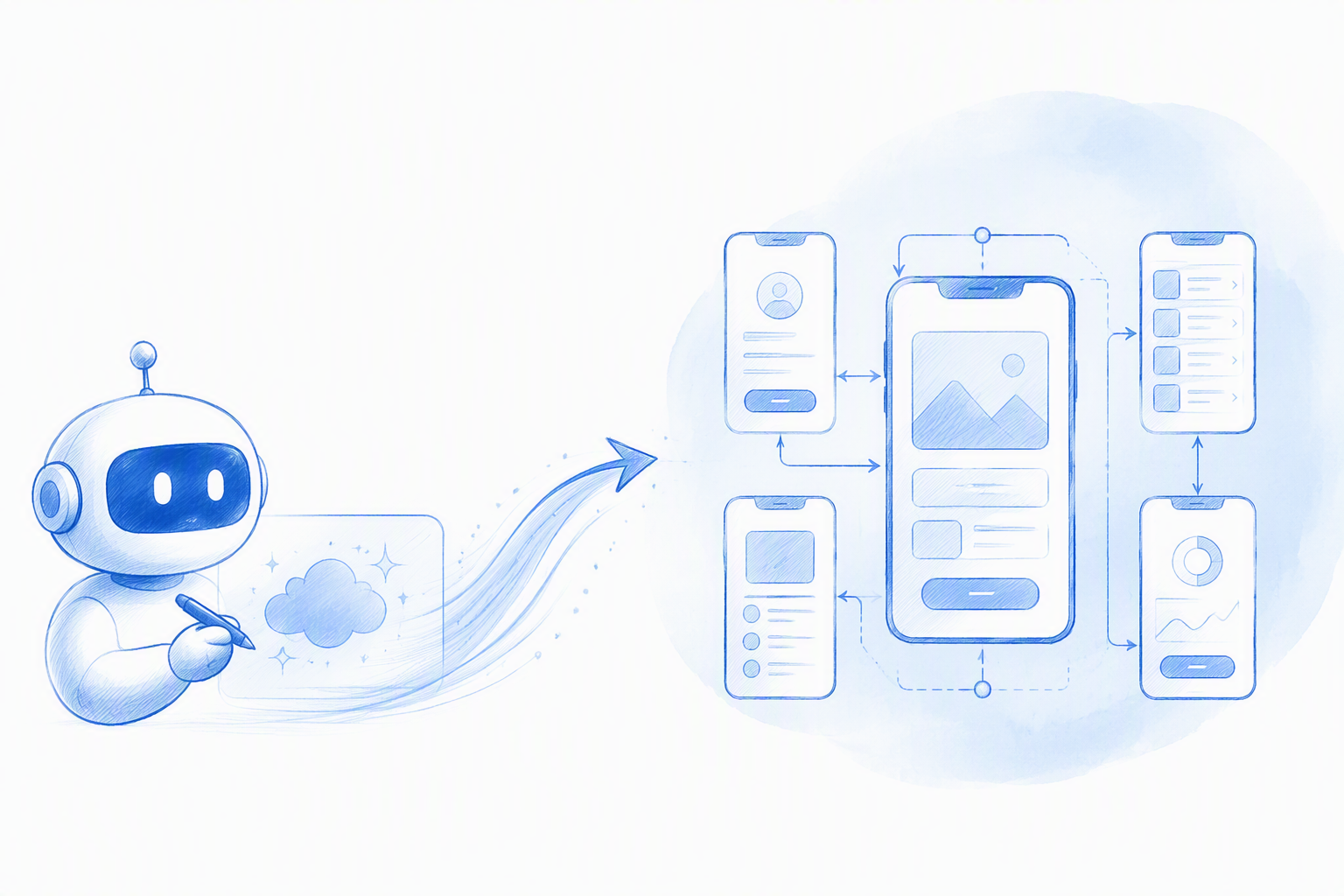
Consider the prompt: “Create onboarding for a budgeting app.” A basic generator might return a few attractive slides. A more useful workflow could propose welcome, account setup, goal selection, permissions, loading, success, and recoverable error screens.
Our approach is to make vague requirements concrete earlier. The working sequence is straightforward: prompt, generate, review, refine, test, and hand off.
Before: A short requirement without a defined sequence, states, copy, or platform behavior.
After: An editable draft flow with connected actions, repeated patterns, and visible gaps for designer review.
1. Describe the user, goal, platform, and constraints
Product context is more useful than visual adjectives. “Clean and modern” says little about the person using the interface or the task being completed.
A stronger prompt identifies:
- •Target user and primary goal
- •iOS, Android, or both
- •Required steps
- •Main action
- •Product tone
- •Known permissions and edge cases
This context gives the assistant a better basis for proposing the flow.
2. Generate the core screens and missing states
Start with the happy path, then add loading, empty, validation, error, success, permission, and recovery states where relevant. A sign-in flow might need password reset, invalid credentials, offline, verification, and success screens.
Review whether every action leads somewhere logical. Navigation labels and primary calls to action should remain consistent.
3. Refine the editable output
Correct hierarchy, spacing, UI copy, and component choices directly. A designer should not need to regenerate the entire flow because one card or validation message is wrong.
Focused variations are more useful than uncontrolled redesigns. For example, compare two goal-selection patterns while preserving account setup and permission screens.
4. Review and hand off
Check accessibility, platform conventions, component alignment, content accuracy, and edge cases. Confirm that the output fits the team’s existing design and development workflow.
An AI prototyping tool creates more value when its output can move forward. A concept that must be rebuilt elsewhere simply relocates the work.
What Makes AI-Generated UI Usable?
We use a practical evaluation scorecard:
| Criterion | What to inspect |
|---|---|
| Output quality | Clear hierarchy, realistic content, and logical flow |
| Control | Editable text, controls, sections, and screens |
| Consistency | Stable components, spacing, typography, and navigation |
| Speed | Total time from prompt to reviewed design |
| Handoff | Structured output, useful exports, and documented states |
Test these criteria with one of the team’s real features. Product constraints reveal more than curated showcase screens.
Editable structure, not a flat image
Verify that text, controls, containers, and screens can be edited independently. Then change a requirement and see whether the flow can evolve without being rebuilt.
This matters because product requirements rarely remain fixed after the first review.
Components, spacing, typography, and consistency
Look for repeated components, predictable spacing, clear hierarchy, and stable typography. A checkout button should not quietly change its size, label style, or behavior halfway through the flow.
Also test whether component or token changes can be applied efficiently. That makes alignment with an existing design system more practical.
Complete state coverage
Require empty, loading, error, success, disabled, validation, and permission states where the feature needs them. Each state should explain what happened and offer an appropriate next action.
A happy path alone is not sufficient for production work. Users also need clear recovery routes.
Useful UX copy in context
Evaluate labels, helper text, validation messages, confirmations, permissions, and empty states—not just headlines. Contextual copy generation can provide a useful starting point.
Our recommendation is to review all generated copy for accuracy, tone, localization, legal sensitivity, and risk.
Designing for iOS and Android Without Generic Layouts
Mobile output should not resemble a desktop dashboard squeezed into a smaller frame. iOS and Android designs need to consider navigation, system controls, safe areas, keyboards, permissions, touch interactions, and accessibility settings.
The same feature may require different platform treatments while preserving the brand and product logic.
Platform specificity checklist
Review:
- •Navigation structure and back behavior
- •Sheets, dialogs, and modal patterns
- •Native controls and system feedback
- •Input focus and keyboard behavior
- •Permission requests
- •Safe areas and device constraints
- •Content expansion
- •Accessibility and text-size settings
A credible iOS or Android UI generator should adapt interaction patterns rather than merely changing frame dimensions.
Brand consistency still needs designer judgment
AI can apply colors, components, typography, and spacing rules. It can also repeat a poor decision across an entire flow.
Designers must catch low contrast, inaccessible interactions, misplaced brand elements, and patterns that conflict with platform expectations. Consistency only helps when the underlying choice is sound.
How to Compare AI Design Assistants for Production Work
Instead of relying on a generic ranking, run the same task through each shortlisted tool. Use identical requirements and revision requests, then compare the work needed to reach handoff.
Assess:
- •Flow quality
- •Editability and control
- •Component consistency
- •State coverage
- •Platform specificity
- •Collaboration
- •Export options
- •Usage rights
- •Manual cleanup
The top three capabilities to prioritize
For mobile UI/UX, we prioritize:
- •Coherent multi-screen flows rather than isolated screens
- •Structured, editable output rather than flattened concepts
- •Practical refinement across states, components, accessibility, and handoff
These qualities usually matter more than a large collection of visual templates.
Measure speed to production, not speed to screenshot
Track generation, revision, cleanup, rebuilding, and export preparation. The first attractive screen is only one part of the process.
A fast or free tool can still create extra work when its output must be recreated elsewhere. Measure completed flows rather than generation speed alone.
A practical comparison test
Ask each assistant to create the same onboarding or checkout flow. Then request an error state, a copy change, a component update, and an Android variation.
Check whether each revision remains consistent across the flow. Repeated mismatches indicate that the assistant is adding cleanup rather than reducing it.
Can You Use an AI Design Assistant for Free?
Some products offer free plans or trials, but limits and terms vary. Free access, free exports, and permission to use the output commercially are separate considerations, so check the provider’s current plan and licence terms before using generated work in a paid product.
Check these limits before committing
Review:
- •Generation or credit caps
- •Project and storage limits
- •Export formats
- •Editable output
- •Collaboration access
- •Watermarks
- •Commercial usage rights
- •Privacy policies
- •Ownership conditions
A free AI design assistant can be useful for testing. Professional suitability depends on what teams can edit, export, share, and use.
When free output costs more
Include the time required to fix generic layouts, rewrite copy, recreate images, rebuild components, and prepare exports.
A generous generation allowance provides little value if the resulting work cannot move into the production process.
What “Designer AI” can mean
“Designer AI” may refer to AI design software generally or to a named product. Confirm which service is being discussed and check its current plan terms.
For mobile work, verify that it produces editable screens and connected flows. Graphic-generation features alone do not establish that capability.
Where AI Helps—and Where Designers Stay in Control
AI can accelerate first drafts and repetitive variations. Designers remain responsible for product decisions, user needs, accessibility, ethics, and final quality.
Tasks to accelerate with AI
We use AI-assisted workflows to:
- •Translate feature ideas into initial screens
- •Explore alternative flows
- •Draft contextual interface copy
- •Expand loading, error, empty, and success states
- •Create early prototypes for discussion
- •Produce platform-specific starting points
These tasks give teams something concrete to evaluate sooner.
Decisions not to automate blindly
Do not accept visual hierarchy, brand application, accessibility, or product logic without review. Generated patterns are not automatically suitable for a specific audience or feature.
Validate the work against research, technical constraints, platform expectations, and the design system.
A review checklist before handoff
Check flow logic, content accuracy, component alignment, contrast, focus order, touch targets, text scaling, keyboard behavior, and edge cases. Review happy paths and recovery paths.
Document intentional exceptions so developers can distinguish design decisions from accidental inconsistencies.
FAQ
What should an AI design assistant produce?
It should produce connected, editable screens with logical navigation, reusable components, realistic content, and relevant states. Designers should be able to refine individual elements and expand the flow without rebuilding it.
How should teams evaluate AI-generated UI?
Test the assistant with a real feature and measure total time to a usable handoff. Review editability, consistency, state coverage, platform behavior, accessibility, exports, and cleanup.
Is a prompt-to-image tool useful for app design?
Yes, primarily for inspiration and visual exploration. A flat image can communicate direction, but it does not provide editable controls, connected states, or dependable interaction logic.
Can AI-generated UI support both iOS and Android?
It can provide starting points for both platforms, but teams should verify navigation, back behavior, controls, permissions, keyboards, safe areas, and accessibility. Different device frames alone do not create platform-specific experiences.
Will an AI design assistant replace UI/UX designers?
AI can accelerate drafts, variations, state generation, and copy. Designers still own user understanding, interaction logic, accessibility, prioritization, brand context, and final quality.
Turn One Prompt Into a Mobile Flow
Bring one real mobile feature to floow.design and turn the requirement into an editable flow your team can review and refine.