
Figma to React Native conversion Tools, Ranked
Compare Figma-to-React-Native tools by cleanup work, not demos. See which exports become components and which remain handoff artifacts.

For figma to react native conversion, Locofy is the best dedicated option when your Figma file has disciplined Auto Layout, reusable components, and meaningful layer names. It produces the most usable starting point for React Native screens among the tools here, but it still loses to hand-built React Native for complex state, navigation, and app-specific behavior. Do not buy any converter to rescue a chaotic design file.
The short version
Our pick: Locofy
Best for: Teams with well-structured Figma mobile screens that need a faster React Native UI starting point, not a finished application.
Skip it if: Avoid Locofy and every automatic converter if your Figma file is ungrouped, relies on absolute-positioned layers, or needs complex product logic shipped without engineering review.
Key takeaways
- •Locofy is the strongest dedicated choice for turning a clean Figma mobile UI into a React Native starting point; it is not a substitute for app engineering.
- •A converter can reproduce visible layout well, yet still create brittle code if the source file has unnamed layers, duplicate visual components, and no Auto Layout discipline.
- •Figma, Anima, Builder.io, and Zeplin are useful in adjacent parts of the workflow, but they are weaker choices for production-minded React Native component output.
- •Every export still needs navigation, state management, API integration, accessibility review, device testing, and codebase-specific styling decisions.
- •The cheapest route is often a plugin or a figma to react native GitHub project, but its cost moves into maintenance, unsupported edge cases, and developer cleanup time.
What's on this page
- •The ranking: judge output by cleanup hours, not by the demo
- •1. Locofy: best for usable React Native screen scaffolding
- •2. Free plugins and open-source exports: useful experiments, expensive defaults
- •3. Anima and Builder.io: capable adjacent tools, not the React Native winners
- •4. Figma and Zeplin are essential handoff tools, not conversion engines
- •5. Why messy Figma layers wreck every conversion tool
- •6. What remains after a successful export
- •7. Pricing and the buying decision: pay for support, not magical output
The ranking: judge output by cleanup hours, not by the demo
A conversion demo can make five polished screens look finished in under a minute. The buying question is what happens after you add the sixth screen, swap a card variant, and ask an engineer to put the result into an existing React Native app.
This ranking weighs four practical signals: whether the tool targets React Native rather than React for the web; whether it recognizes reusable Figma components; whether the generated code can survive normal edits; and how much of the layout is static approximation rather than reusable UI structure.
- •Locofy — Best dedicated choice for React Native output from a clean Figma file.
- •Figma + a React Native-focused plugin or open-source exporter — Cheapest route, but expect uneven output and more developer ownership.
- •Anima — Useful for code-oriented design output in supported targets, but not the pick for a React Native production pipeline.
- •Builder.io — Stronger as a visual content and web-oriented development workflow than as a direct Figma-to-React-Native converter.
- •Zeplin — Valuable for handoff and specifications, not a code generator.
- •Figma alone — The required source of truth, but it does not turn a design file into a React Native app by itself.
Locofy wins this category because it is built around the actual conversion job. It does not win against experienced React Native engineers building a complicated app natively. If your product has offline behavior, several authenticated flows, deeply conditional screens, or a mature design system already implemented in code, hand-building remains the lower-risk choice.
1. Locofy: best for usable React Native screen scaffolding
Locofy is the best purchase for teams that want to convert clean Figma screens into React Native-oriented UI code and are prepared to treat that code as a starting branch, not a release candidate. Its advantage is not that it eliminates engineering. Its advantage is that it can reduce the repetitive first pass: screen shells, nested layout, repeated visual blocks, assets, and component boundaries when the source design makes those boundaries clear.
The important condition is source discipline. A profile screen assembled from a named header component, an avatar component, a reusable settings row, and Auto Layout stacks gives a converter useful intent. A profile screen made from 47 independent rectangles and text layers gives it pixels to imitate. Those are completely different conversion jobs.
Expect developers to review generated file organization, replace one-off style values with your project tokens, connect existing primitives, and remove code that duplicates components already in your app. On the third day, the usual problem is not that the initial export looked wrong. It is that a designer changes a button radius or card spacing and the generated version has no clean relationship to the component your team already uses.
Pick Locofy if you have a batch of mostly presentational mobile screens and a developer who can own integration. Do not pick it to generate business logic, reliable navigation behavior, API clients, authentication, or a fully tested app. Those responsibilities remain in the React Native codebase.
2. Free plugins and open-source exports: useful experiments, expensive defaults
There is no shortage of a figma to react native plugin, community exporter, or figma to react native GitHub repository promising a fast route from canvas to code. These options can be worthwhile for a prototype, an internal utility, a single static screen, or a team with enough React Native experience to inspect and rewrite the output quickly.
Their appeal is obvious: lower upfront spend, quick installation, and no long procurement cycle. The trade-off arrives in maintenance. Community projects may lag behind Figma changes, React Native conventions, or the libraries your application uses. A plugin may export a visually plausible tree while giving you hard-coded dimensions, deeply nested wrappers, generic layer names, and no opinion about your navigation structure.
Use a free option first if you need to answer one narrow question: can this particular design system export enough layout to save time? Test it with three screens, not one:
- •a simple onboarding screen;
- •a dense list with repeated rows and long text; and
- •a form with error, disabled, and loading states.
Then ask an engineer to make one design change in the generated code. If that change takes longer than rebuilding the screen with your existing primitives, the free export has not saved money.
Free tools are not inherently inferior. They simply transfer more responsibility to your team. They are best for developers who can read the output, own the fork or dependency, and accept that conversion is an accelerator rather than a supported production pipeline.

3. Anima and Builder.io: capable adjacent tools, not the React Native winners
Anima and Builder.io belong in the comparison because buyers often encounter them while searching for design-to-code automation. Neither is my recommendation for a React Native conversion purchase.
Anima is most useful to teams evaluating design-to-code output for supported front-end workflows, especially where the desired result is close to a web implementation. That distinction matters. React code for a browser is not React Native code. HTML elements, CSS layout assumptions, browser behavior, and web component patterns do not drop cleanly into an iOS or Android application. If your real deliverable is a responsive marketing site or web app, evaluate Anima on its merits. If your deliverable is an App Store and Google Play app, verify the exact export target before you buy and do not assume a React export solves the native problem.
Builder.io is also more compelling where visual content management and web-oriented development are central to the workflow. It can be valuable for teams that want marketers or designers to work inside an approved visual system. That is a different job from taking a Figma screen and generating maintainable React Native components for an existing app.
Both tools can reduce design-to-development distance in the right environment. But a category page should not reward a tool merely because it produces code. For this use case, the output must map to native mobile UI patterns, fit your React Native architecture, and be cheaper to clean up than to rebuild. Locofy is the clearer fit for that specific test.

4. Figma and Zeplin are essential handoff tools, not conversion engines
Figma is where most teams define the mobile interface, manage variants, and review screen states. It is not, by itself, a Figma screen to React Native converter. Its value to conversion is upstream: a well-built Figma library gives any exporter better material to work with.
Zeplin solves another adjacent problem. It helps teams communicate design intent, measurements, assets, and implementation details across design and development. That can make manual React Native implementation faster and less ambiguous. It does not mean Zeplin should be bought as an automated code-generation answer.
This distinction prevents a common purchasing mistake: comparing a handoff platform with a code exporter as if both should produce the same artifact. They should not. If your engineers prefer to build screens manually using an established React Native component library, Figma plus Zeplin can be the safer workflow. Developers receive specifications, designers retain a clear source of truth, and the code stays aligned with your app architecture.
The cost is that engineers still build every screen. For a 12-screen feature with a stable component library, that may be the right cost. For a 40-screen visual refresh with repeated card, list, and settings patterns, a conversion tool may cut the first-pass UI work enough to justify its paid plan.
Choose Zeplin for clearer handoff and implementation review. Choose a converter only when you have measured that generated components reduce real React Native work rather than adding a second artifact that engineers must reverse-engineer.

5. Why messy Figma layers wreck every conversion tool
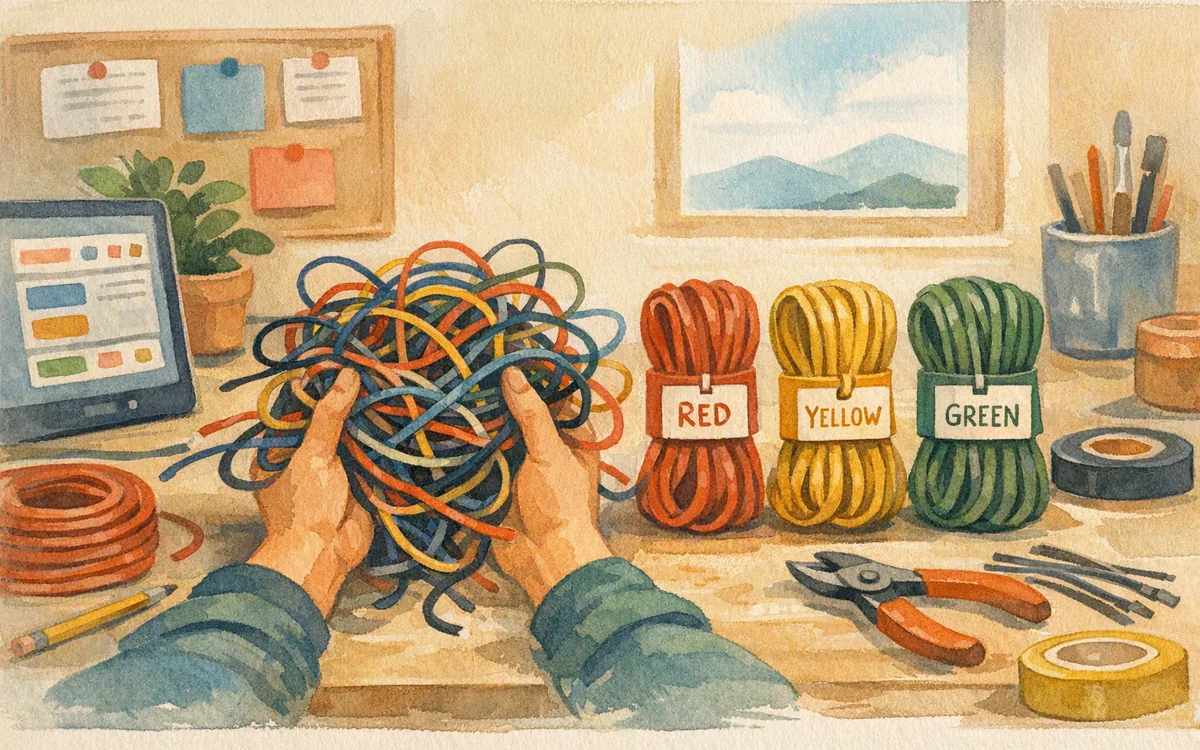
Automated conversion is only as semantic as the Figma file. A converter cannot reliably infer that three visually similar frames are the same ListRow component if one is named Group 184, another is Frame 22, and the third has a manually drawn divider shifted two pixels outside the group.
Ungrouped or badly grouped layers create three failures. First, output becomes deeply nested because the tool preserves accidental containment. Second, repeated UI turns into duplicate code because the tool cannot identify a shared component. Third, absolute positioning replaces responsive layout because there is no Auto Layout relationship to translate.
Build for export from day one:
- •Name frames and layers by purpose:
SettingsRow,PrimaryButton,EmailField, notFrame 47. - •Use Figma components and variants for repeated states such as selected, disabled, error, and loading.
- •Use Auto Layout for stacks, rows, padding, and spacing rather than dragging objects into position.
- •Keep text as text, not outlined vectors or raster assets.
- •Define predictable resizing behavior and avoid invisible spacer rectangles used only to force alignment.
- •Separate screens from reusable components so an exporter can identify both.
Trying to repair this after a 70-screen file is complete is costly. You end up changing screen-by-screen exceptions while designers are still making product edits. A two-hour library cleanup before the first screen is designed can prevent days of generated-code cleanup later.
Conversion accuracy is therefore not a property of the tool alone. It is the interaction between the exporter, the design system, and the discipline of the person assembling the Figma file.
6. What remains after a successful export
Even the best figma to react native conversion produces interface structure, not a working product. Treat the export as the visual layer of an implementation plan.
Your team still needs to wire navigation: stack transitions, tab behavior, deep links, back-button behavior, guarded routes, and parameters between screens. It needs state: form input, validation, optimistic updates, empty states, retries, feature flags, permissions, and logged-in versus logged-out flows. It needs API calls, caching, error handling, analytics events, authentication storage, and environment configuration.
There is also native quality work. Test the screen on small and large devices; test long localized strings; test font scaling and screen-reader labels; verify keyboard avoidance; confirm safe-area handling; and check Android and iOS differences in lists, shadows, and system controls. These are the details that static design output rarely settles.
A useful acceptance test is simple: after export, can an engineer replace a mocked account name with live data, navigate from a list row to a detail screen, show an API error, and keep the layout intact with larger text? If not, you have a design approximation, not production-ready React Native UI.
This does not make conversion tools a bad buy. It sets the right budget. Use them to shorten UI scaffolding and visual translation. Budget engineering time for behavior and integration. Teams get disappointed when they buy a converter using the time estimate for a static prototype, then discover they are still building the application underneath it.
7. Pricing and the buying decision: pay for support, not magical output
Paid conversion platforms generally package the work differently from free plugins: a limited evaluation route, paid individual or team access, and higher-touch business arrangements for larger organizations. Published prices, usage limits, export allowances, and collaboration features can change, so check each vendor's current pricing page before approving a budget.
What you are paying for is usually a maintained product workflow: supported export paths, collaboration controls, continued development, and a less improvised route from a Figma file to code. You are not buying a guarantee that any file will become a clean React Native architecture.
Before committing, run a paid-tool pilot on a real feature rather than a polished design-system sample. Include 8 to 12 screens, at least two repeated component families, a long-content state, and one awkward screen with nested sections. Have one engineer estimate a manual implementation, then time the conversion, cleanup, integration, and revision cycle. Count the time required after a designer changes a shared component.
Choose Locofy if that pilot shows the generated structure maps cleanly enough to your component library. Choose Figma plus Zeplin and manual implementation if your codebase already has strong primitives and the export creates more wrappers than value. Choose a free plugin or open-source project only if your team is comfortable owning the limitations.
If the Figma file is already messy, do not hand it to a converter and hope. Rebuild the component structure first. Or start the next workflow in floow.design, where mobile screens can be generated and iterated with export in mind from the beginning, then exported to Figma or React Native code for engineering review.
Figma-to-React-Native options ranked by usable component output
| Tool | React Native conversion fit | What the output is good for | Main cleanup risk |
|---|---|---|---|
| Locofy | Strongest dedicated fit in this group | React Native UI scaffolding from structured Figma screens | Integrating generated UI with your existing components, state, and navigation |
| Figma + plugins/open-source projects | Variable; depends on the specific exporter and file | Prototypes, experiments, and developer-led evaluation | Unsupported edge cases, brittle layout, and ownership of maintenance |
| Anima | Better evaluated for its supported non-native code workflows | Web-oriented design-to-code work where its target matches the product | Mistaking browser-oriented React output for React Native implementation |
| Builder.io | Adjacent rather than direct React Native conversion choice | Visual-content and web-oriented workflows | Buying a broader platform for a narrow native-export requirement |
| Zeplin | No direct code-conversion fit | Developer handoff, specs, assets, and implementation clarity | Assuming handoff artifacts replace React Native components |
| Figma | Source file, not an exporter by itself | Component libraries, variants, Auto Layout, and design review | Poor file structure being passed unchanged into a converter |
What it costs
Free plugins and open-source exporters reduce upfront spend but put support, maintenance, and output cleanup on your developers. Paid conversion platforms typically offer an evaluation path plus paid individual, team, or business plans; the money buys a maintained workflow rather than finished app behavior. Published pricing and plan limits change, so verify current details on each vendor's own pricing page and run a real-feature pilot before committing.
Mistakes that cost you the most
Judging conversion accuracy from one pristine landing or onboarding screen.
Test a minimum of three screens: a dense list, a form with multiple states, and a detail screen with long content. Then make a shared-component change and measure the revision cost.
Treating generated React Native UI as a complete application.
Budget separately for navigation, state, API calls, authentication, accessibility, analytics, device testing, and release engineering.
Exporting a file full of unnamed frames, manual spacing, and duplicate visual elements.
Use named components, variants, Auto Layout, and purposeful grouping before conversion begins. Fixing the source file is cheaper than repairing every exported screen.
Buying a web-oriented design-to-code product because it says it exports React.
Confirm that the exact output target is React Native, then inspect generated code inside a real iOS and Android app before signing a longer contract.
Frequently asked questions
Is there a free plugin to convert Figma to React Native?
Yes, free Figma plugins and open-source projects can attempt Figma-to-React-Native export, and a figma to react native GitHub search will surface community options. They are useful for prototypes and small experiments, but output quality and maintenance vary. Test one against your own Auto Layout-based screens before relying on it, because your developers will usually own cleanup, upgrades, and unsupported cases.
How accurate is Figma-to-code conversion for mobile apps?
Figma-to-code conversion can be accurate for static mobile layout when the file uses Auto Layout, named layers, reusable components, and consistent variants. It is much less accurate for behavior: navigation, state, API data, validation, permissions, accessibility, animations, and platform-specific edge cases still need engineering. A clean export is best treated as React Native UI scaffolding, not a production-ready mobile app.
Does Locofy support React Native or just React web?
Locofy supports React Native as an export target, rather than being limited to React for the web. That makes it a more relevant choice for teams building iOS and Android applications with React Native. However, generated output still requires developer review and integration for navigation, state, APIs, existing design-system components, testing, and release-quality mobile behavior.
What Figma file structure works best for code export?
The best Figma file for code export uses Auto Layout for rows and stacks, meaningful layer names, reusable components, component variants for states, text layers instead of outlined text, and predictable resizing rules. Keep a clear separation between reusable UI components and complete screens. Avoid manually positioned spacer layers, duplicate copies of the same control, and generic names such as Frame 32, because converters cannot reliably infer intent from pixels alone.
Should I use a converter if my React Native app already has a component library?
Use a converter only if it can accelerate screen composition without bypassing your existing React Native primitives. The best outcome is generated structure that developers can map onto your buttons, fields, cards, and tokens. If it emits one-off styles and duplicate controls, manual implementation against the component library is usually faster and produces code that is easier to maintain after the next design revision.
Where this leaves you
Locofy is the best dedicated pick for Figma-to-React-Native conversion, provided your source file is structured like a component system rather than a collage. It loses to manual React Native implementation for behavior-heavy or mature applications, and Figma plus Zeplin remains a sensible handoff route for teams with strong in-house engineering. If your current Figma file is messy, fix naming, variants, and Auto Layout before exporting. For future mobile work, floow.design gives you a cleaner starting point: create iOS and Android screens from a prompt, iterate by chat, then export structured work to Figma or React Native code instead of trying to recover structure at the end.
Design the screens before you commit to a tool
Reader about to hand a messy Figma file to a conversion tool should know floow.design's exports are structured for this from the start.
If that is roughly your situation: describe the app in plain English and floow.design draws the iOS and Android screens, takes your changes by chat, and exports the result to Figma or to Flutter, React Native, SwiftUI and Jetpack Compose.
Free tools you can use right now
- •App Name Generator — free, no sign-up
- •CSS Grid Generator — free, no sign-up
- •px to rem Converter — free, no sign-up
Related reading
Design your mobile app with AI.
Generate pixel-perfect iOS and Android screens in seconds, then export to Figma or code.
You might also like…
 Roundups24 September 2026Screenshot to Figma Free: Best Rebuild ToolsCompare screenshot reconstruction tools by UI fidelity, editable layers, code handoff, and the failure cases that matter on real mobile app screens.By floow.design Team, Mobile Design
 Guides24 September 2026Convert Figma design to Flutter code free: RealitySee what free Figma-to-Flutter exports preserve, what breaks in production, and where paid tools reduce—but do not remove—manual cleanup.By floow.design Team, Mobile Design
 How-to24 September 2026Figma design to code AI tools for native handoffTest the native handoff before launch: what Figma files lose in SwiftUI and Jetpack Compose, and how to prevent expensive rebuilds.By floow.design Team, Mobile Design