
Best AI UI Mockup Generator for Mobile Screens
Compare AI tools that turn screenshots and sketches into editable mobile screens, not static phone-frame images. See the best pick and its limits.

Uizard is the best ai ui mockup generator for teams turning simple mobile screenshots or hand-drawn sketches into editable starting screens. It wins because screenshot and wireframe conversion are central to its workflow, not an afterthought. Choose Visily instead for collaborative early-stage planning, and do not choose Uizard if you need pixel-faithful reconstruction of a complex production app screen.
The short version
Our pick: Uizard
Best for: Product teams that need to turn basic screenshots or sketches into editable mobile wireframes quickly.
Skip it if: Do not pick it for exact reproduction of dense, branded app interfaces with custom typography, layered effects, and complex component states.
Key takeaways
- •Uizard is the strongest overall choice for converting simple screenshots and sketches into editable mobile-screen starting points.
- •A phone device-frame mockup is a presentation image; an editable UI mockup contains separate objects you can move, restyle, and reuse.
- •Visily is the better choice for teams prioritizing collaborative planning and broad early-stage ideation over one-tool screen reconstruction.
- •No screenshot-to-design tool reliably recreates a real production app screen pixel for pixel, especially where elements overlap or fonts are custom.
- •Figma remains the place many teams refine a design system, but it is not, by itself, a dependable screenshot reverse-engineering tool.
What's on this page
- •Do not buy a device-frame generator when you need editable UI
- •Ranked: the tools that matter for screenshot-to-mobile-screen work
- •What ‘editable layers’ really means after you upload a screenshot
- •Why Uizard wins overall, and where Visily beats it
- •Where Figma, Mockplus, and Moqups fit—and do not fit
- •Real app screenshots break converters in predictable places
- •A faster workflow for rough sketches and existing references
Do not buy a device-frame generator when you need editable UI
A device-frame mockup is a marketing visual: a flat app screenshot placed inside an iPhone or Android handset, often with shadows, hands, or a background. It helps you present an app that already exists. You cannot select the tab bar, change a button label, or turn its cards into reusable components.
An editable UI mockup generator tries to infer the interface inside that image. Its useful output is a screen made from objects: text, shapes, images, fields, navigation, and sometimes reusable patterns. That is the category to buy if your input is a competitor screenshot, a whiteboard photo, or a rough pencil sketch and your next step is redesign.
The distinction changes the shortlist. Mockup presentation tools can make a convincing App Store image in minutes, but they do not solve screenshot-to-design. Generic prompt-to-app products can produce an attractive login screen from a sentence, but may ignore the layout you are trying to preserve. A mobile app mockup generator for reconstruction must begin with visual reference, then leave you with something you can edit.
Set a realistic success condition before a trial: can you replace the hero image, change the copy, reorder three cards, and export or hand off the result without redrawing the full screen? If the answer is no, you received a traced picture or a presentation asset, not a design starting point.
Ranked: the tools that matter for screenshot-to-mobile-screen work
This ranking favors one job: turning a screenshot or rough sketch into a mobile screen you can materially edit. It does not rank the best visual-design suite, code generator, or device-render tool.
1. Uizard — best overall. It is the clearest fit for importing a simple interface reference or hand-drawn wireframe and moving directly into editable screen work. Its trade-off is fidelity: treat the generated result as a structured first draft, not a production reconstruction.
2. Visily — best for collaborative planning. It is a strong alternative when product managers, founders, and designers need to assemble flows together. It is especially sensible while the UI is still changing daily.
3. floow.design — best for iterating a mobile-screen direction by chat. It is useful when the reference should be transformed into a new iOS or Android screen rather than copied literally, then refined through instructions and exported for design or development work.
4. Galileo AI — best for prompt-led visual exploration. It belongs on a shortlist for generating polished interface concepts from a description, but it is not the first tool to buy for faithful screenshot reverse-engineering.
5. Figma — best destination, not best converter. Most teams will still want its editing environment, libraries, and review workflow after generation.
6. Mockplus and Moqups — useful conventional mockup tools, weaker AI-conversion buys. They can support wireframing and collaboration, but neither should be your first purchase solely for AI screenshot reconstruction.

What ‘editable layers’ really means after you upload a screenshot
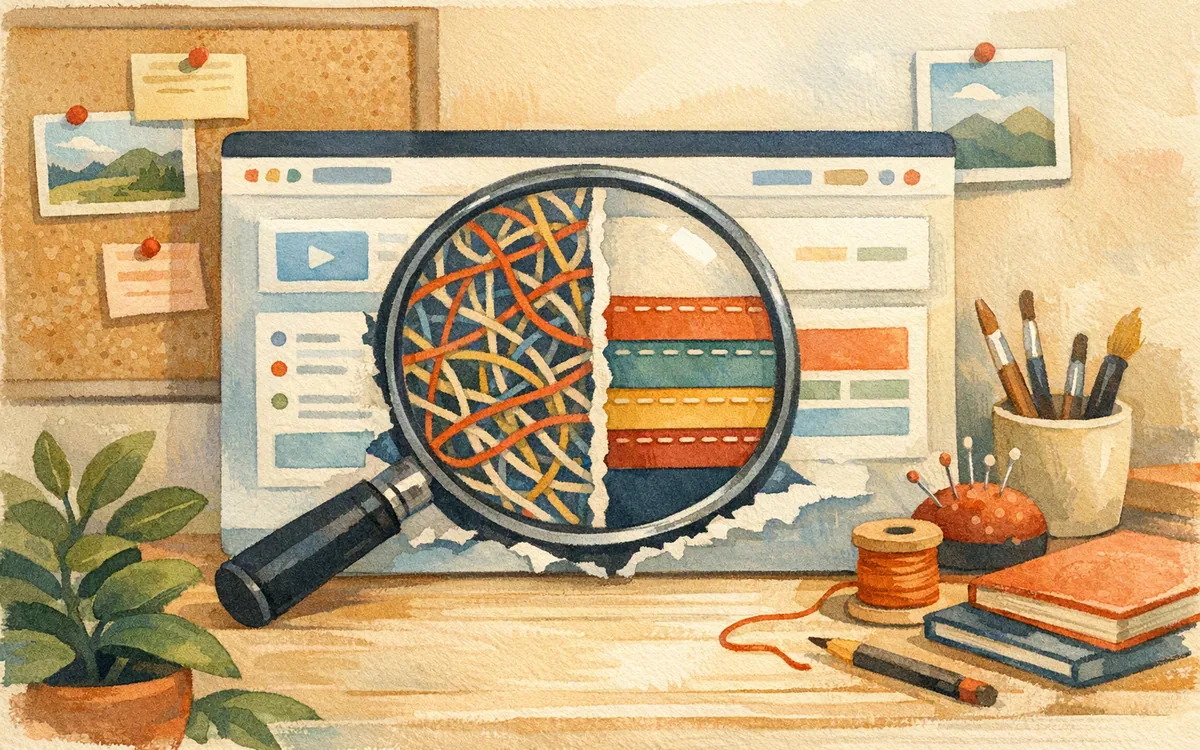
The phrase AI screenshot to Figma screen to design suggests a cleaner conversion than most tools can deliver. A useful converter identifies visible regions and rebuilds an approximation: text boxes, image areas, buttons, containers, and spacing. A weak one places the original screenshot on a canvas and draws a few boxes above it. That may look editable until you need to change the content.
For simple layouts, Uizard and Visily are the better candidates in this roundup to test for editable reconstruction. Think onboarding screens, profile pages, settings lists, dashboards with distinct cards, and login forms. Their value is speed: instead of manually rebuilding 25 visible elements, you get a hierarchy to correct.
A screenshot imported into Figma remains a bitmap unless you use a separate conversion method or rebuild the interface. Figma is excellent once real editable layers exist, but its core editing canvas should not be mistaken for automatic screen decomposition. The same caution applies to many plugins and one-click import claims: inspect the resulting layer panel, not just the canvas preview.
Run one test that exposes the truth. Import a screen with a header, search field, list rows, a floating action button, and a bottom tab bar. Then delete the screenshot background. If the UI disappears, it was a flat trace. If individual pieces remain, you have a workable starting point. Check whether text is editable text and whether repeated list rows are separate, consistent groups.
Why Uizard wins overall, and where Visily beats it
Uizard wins because its workflow matches the buyer’s actual problem: you have a rough reference and need an editable screen before the afternoon is over. It is a better overall purchase than a pure prompt generator if your source material already communicates the layout. Start with a clean screenshot or a high-contrast sketch, correct the hierarchy, then build the next four to eight screens manually from the patterns it identified.
Do not interpret that recommendation as a claim of visual fidelity. On a standard mobile settings page, a basic profile screen, or a simple marketplace listing, automated reconstruction can remove repetitive setup. On a banking dashboard with branded charts, nonstandard icons, and conditional states, expect a draft that needs designer judgment.
Visily loses narrowly on this specific criterion, not because it is weak. Pick Visily over Uizard when the work begins with a product workshop rather than one source screenshot. It is the stronger fit for teams mapping a 12-screen concept, sharing ideas with non-designers, and accepting that the first version is deliberately rough.
Galileo AI is different again. It is appealing when you need an ai ui ux generator to propose a visual direction from a product brief. But a prompt-led output can invent hierarchy, spacing, and patterns you did not ask for. If preserving a screenshot’s information architecture matters, use it for alternatives after reconstruction, not as the first conversion step.

Where Figma, Mockplus, and Moqups fit—and do not fit
Figma is usually the handoff point for a serious team, particularly when the reconstructed screen must join an existing component library. It gives designers control over layout, variants, comments, and developer handoff. But it is not an automatic answer to “I uploaded a screenshot; where are my editable components?” Plan on a conversion tool, plugin evaluation, or manual reconstruction before the Figma cleanup pass.
Mockplus and Moqups make more sense as established wireframing and collaboration environments than as specialist AI screenshot-to-design purchases. They are reasonable if your team already works there and the goal is documenting flows, collecting feedback, or producing straightforward clickable mockups. They are not the right bet if your buying criterion is accurate AI interpretation of an existing iOS or Android screen.
That distinction saves a common third-day disappointment. A team imports six references, gets attractive canvases, then discovers each navigation bar is built differently, text is not truly editable, and every list row needs rework. The issue is not that the tool failed to make a nice demo. It failed the production-adjacent task: creating a repeatable mobile UI structure.
Use Figma for refinement and system work. Use Mockplus or Moqups for conventional mockup workflows if they suit the team. Buy a reconstruction-focused tool only after testing it against your own hardest reference, not a vendor’s clean sample screen.
Real app screenshots break converters in predictable places
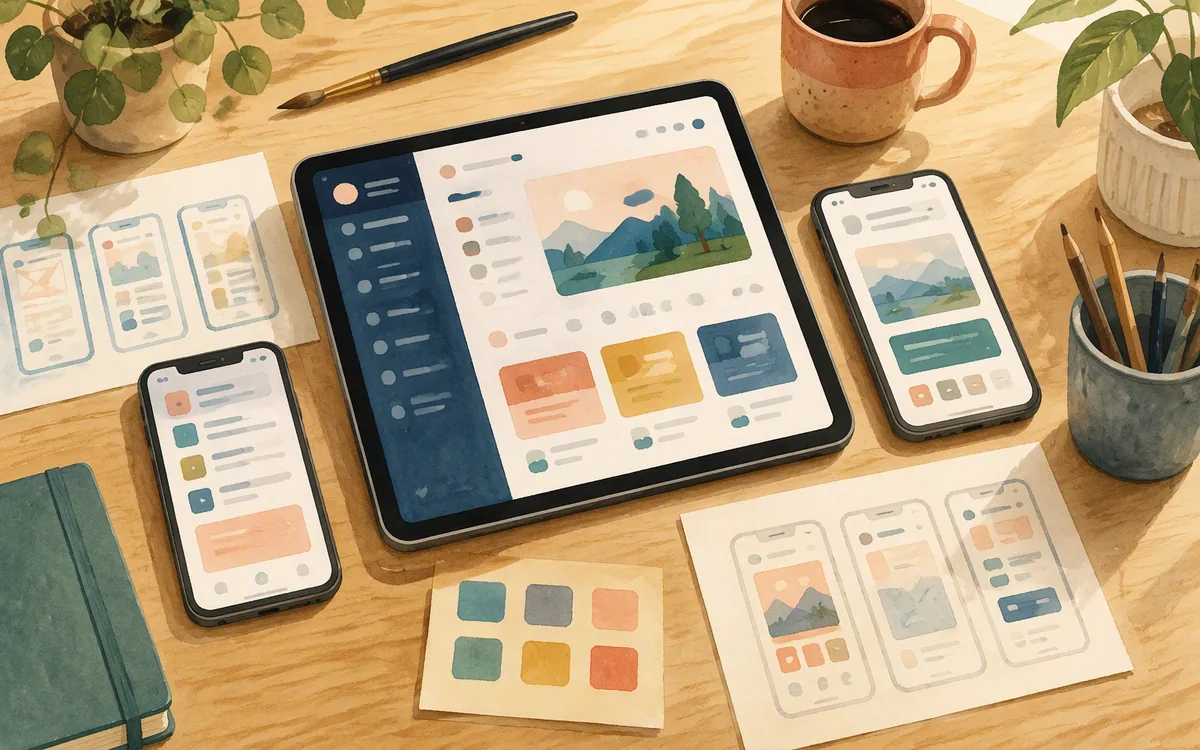
Screenshot-to-design works best where the screenshot exposes a simple visual hierarchy. A white background, clear cards, standard controls, one typeface, and generous spacing give the model enough clues to rebuild a plausible screen. The output may be good enough to save an hour of setup.
Real app screenshots are harder. Three failure patterns appear quickly:
- •Overlapping elements: floating sheets, badges on images, sticky headers, layered gradients, and bottom sheets can be merged into one background region or put in the wrong stacking order.
- •Custom fonts and branded assets: the tool may substitute a system font, convert stylized lettering into an image, or misread tightly kerned text. A two-pixel font-metric difference can turn a polished screen into a visibly wrong one.
- •Hidden behavior: a screenshot cannot reveal loading states, validation rules, keyboard movement, scroll behavior, or what happens after a tap.
The practical rule is to use an imported screenshot as a layout reference, not a specification. Compare every generated text string with the original. Rebuild critical icons from approved assets. Check spacing at the target device size. If the screen has more than three overlapping layers or a strong brand system, budget for a manual reconstruction pass.
Do not use screenshots of a competitor’s app as a shortcut to shipping a copied interface. Use them to identify broad patterns, then make deliberate product and brand decisions. The result should be your screen, with your content, states, and design system—not a near-duplicate with different colors.
A faster workflow for rough sketches and existing references
For a five- to ten-screen concept, use automation to get past the blank canvas, then apply discipline before adding more screens.
- •Choose one representative source. Use the screen with your core navigation and densest normal content, not a splash screen. Crop away the device frame, browser chrome, and notification bar if they are not part of the app UI.
- •Convert and inspect. Confirm that labels, cards, images, and controls can be changed independently. Fix the layout grid and type scale before duplicating anything.
- •Create the repeatable shell. Build one app bar, one tab bar, one primary button, and two or three content patterns. Reuse them across the flow instead of accepting slightly different generated versions.
- •Generate variations only after structure is stable. This is where floow.design is useful: provide a rough sketch or screenshot as direction, ask for a changed mobile-screen concept in chat, and iterate on the screen rather than treating the first output as final. Its exports to Figma and mobile code targets make it a practical bridge after direction is agreed.
- •Validate on a real device-sized frame. Check long labels, small tap targets, safe areas, and Android versus iOS conventions.
This workflow prevents the most expensive error: generating 20 screens before discovering the tool interpreted your navigation incorrectly. Get one editable screen right, create the system around it, then expand.
AI mobile mockup generators: which ones turn a reference into usable screen work?
| Tool | Best use in this roundup | Screenshot or sketch result | Main limitation |
|---|---|---|---|
| Uizard | Best overall for simple screenshot and sketch conversion | Editable starting wireframes and screens for cleanup | Not a pixel-faithful reconstruction tool for dense branded apps |
| Visily | Collaborative early-stage mobile planning | Useful editable concepts from visual references and team input | Better for planning than exact reverse-engineering |
| floow.design | Chat-led transformation of a rough reference into a new mobile screen | Editable, iterable screen direction with export options | Not a full prototyping suite or vector illustration tool |
| Galileo AI | Prompt-led UI concept exploration | Generated interface concepts guided by prompts and references | Less suitable when preserving an existing screenshot layout is the priority |
| Figma | Refining and systematizing design output | Editable only after import, conversion, or manual rebuild | Core canvas is not a reliable automatic screenshot-to-component converter |
| Mockplus | Conventional prototyping and wireframing | Manual mockup and collaboration workflow | Not a specialist AI screenshot reconstruction choice |
| Moqups | Straightforward collaborative wireframes | Manual diagrams, wireframes, and mockups | Not a specialist AI screenshot reconstruction choice |
What it costs
Treat pricing as a workflow decision, not a feature checklist. These products commonly separate free or trial access from paid individual, team, and enterprise plans, with collaboration, export, usage limits, or advanced capabilities often gated by tier. A free Figma plan can be useful for editing and review, but it does not guarantee free screenshot-to-design conversion. Published prices, credits, limits, and export terms change; check each vendor’s current pricing page and run your own screenshot through the trial before committing a team.
Mistakes that cost you the most
Buying a phone-frame mockup maker for a redesign project.
Verify that the output contains editable UI objects after the original image layer is hidden.
Testing AI conversion with a clean vendor sample instead of your hardest screen.
Use a real reference with a list, navigation, imagery, and at least one overlapping element.
Assuming a screen screenshot contains interaction requirements.
Write down states, validation, loading behavior, and navigation rules separately before prototyping.
Generating an entire flow before establishing a component pattern.
Correct one representative screen, build reusable navigation and content patterns, then duplicate.
Frequently asked questions
Can I convert a screenshot to an editable Figma design for free?
You may be able to create a screenshot to figma free starting point through a free plan, trial, or plugin, but free access does not guarantee a clean editable reconstruction. Figma can edit layers once they exist; a pasted screenshot is still a flat image. Test whether text, cards, icons, and navigation remain separate after hiding the source image, and check current vendor limits before relying on a free workflow.
What's the best AI tool to turn a sketch into a mobile UI mockup?
Uizard is the best overall AI tool for turning a simple hand-drawn sketch into an editable mobile UI mockup, especially for early wireframes and standard app layouts. Use Visily if several non-designers need to plan screens together. Neither is the right choice for reproducing a highly branded production interface from a sketch without manual design cleanup.
Do screenshot-to-design tools work on real app screenshots?
Screenshot-to-design tools work best on real app screenshots with clear cards, standard controls, readable text, and little visual overlap. They are much less reliable on screens with custom fonts, charts, gradients, floating panels, layered imagery, or unusual navigation. Treat the result as an editable draft that saves setup time, then verify every label, asset, spacing rule, and interaction state manually.
How do I make a mobile app mockup without a designer?
Start with one representative mobile screen, a rough sketch, or a reference layout, then use an AI mockup tool to create an editable draft. Correct the navigation, type scale, and core content pattern before making more screens. Reuse those patterns across a five-to-ten-screen flow, review it at device size, and document states such as empty, loading, error, and keyboard views before sending it to development.
Is an AI mockup generator the same as a device mockup generator?
No. An AI UI mockup generator creates or reconstructs the interface inside an app screen so you can edit its content and layout. A device mockup generator usually places a finished screenshot inside a phone frame for a presentation, portfolio, or store listing. Choose the first for product design work and the second only when the UI is already finished.
Where this leaves you
Choose Uizard if the immediate job is converting a clean screenshot or sketch into an editable mobile starting point. Choose Visily for workshop-heavy planning, and keep Figma in the workflow for the design-system cleanup that AI will not do for you. If you have a competitor reference or rough sketch but want to turn it into a distinct, editable screen rather than preserve a static trace, floow.design is the better next step: use the reference as direction, iterate by chat, and export the result for design or mobile development.
Design the screens before you commit to a tool
Reader has a screenshot or rough sketch of a competitor's app and wants an editable starting point, not a static trace.
If that is roughly your situation: describe the app in plain English and floow.design draws the iOS and Android screens, takes your changes by chat, and exports the result to Figma or to Flutter, React Native, SwiftUI and Jetpack Compose.
Free tools you can use right now
- •App Store Screenshot Generator — free, no sign-up
- •App Store Screenshot Sizes — free, no sign-up
- •Phone Mockup Generator — free, no sign-up
Related reading
Design your mobile app with AI.
Generate pixel-perfect iOS and Android screens in seconds, then export to Figma or code.
You might also like…
 Roundups24 September 2026Best AI Tools for UI UX Design Free: 2026 RankingsCompare free AI UI/UX tools by usable screens, exports, mobile fit and trial traps—not by a vague “free” label.By floow.design Team, Mobile Design
 Guides24 September 2026Best AI tools to design UI UX for solo foundersChoose an AI UI tool with a solo-founder scorecard: prompt quality, iteration, export, monthly cost, and mobile fit—not agency extras.By floow.design Team, Mobile Design
 Guides24 September 2026Which app is best for designing: AI Tool GuideChoose an AI app design tool without reading code or Figma files. Run a ten-minute test, spot no-code limits, and avoid credit traps.By floow.design Team, Mobile Design