
Google Stitch Figma MCP: Which Workflow Wins?
Choose Google Stitch or Figma MCP for mobile UI work based on project stage, setup effort, existing files, and the changes you need automated.

For a new mobile app, google stitch figma mcp is not a close call: choose Google Stitch first. It generates screens quickly without requiring an existing design file or MCP configuration. Figma MCP wins later, when a team already has a maintained Figma system and needs an AI agent to apply repeated changes across many screens. Solo founders should start with the generator.
The short version
Our pick: Google Stitch
Best for: Teams or solo builders creating the first 5–20 mobile app screens before a Figma system exists.
Skip it if: Do not choose Google Stitch as your primary workflow if your main job is controlled, repeated edits across an established Figma file and component library; Figma MCP is the better fit.
Key takeaways
- •Google Stitch is a standalone screen-generation workflow; Figma MCP is a connection layer between an AI agent and an existing Figma context.
- •Stitch is faster at the blank-canvas stage because you can describe an app and generate a starting direction without preparing a file.
- •Figma MCP earns its setup cost on repeated work: updating labels, applying a pattern, finding relevant components, or carrying a change through a screen set.
- •MCP is not automatically a write-enabled design robot. What an agent can inspect or change depends on the Figma MCP server, client, permissions, and the workflow your team has configured.
- •For most solo builders starting a mobile product, Google Stitch is the easier of the two options. For a mature product team, Figma MCP can save more time after the design system is already in place.
What's on this page
- •The decision: start with Google Stitch; graduate to Figma MCP when repetition becomes the problem
- •Google Stitch generates an answer; Figma MCP gives an agent design context
- •Why Stitch is faster for a greenfield mobile app
- •Where Figma MCP pays off: repeated changes across an existing screen set
- •Setup complexity is the real dividing line for solo builders and established teams
- •Choose by project stage, not by the AI feature that looks most impressive in a demo
- •The honest limitation: neither option removes design review or implementation work
The decision: start with Google Stitch; graduate to Figma MCP when repetition becomes the problem
Google Stitch and Figma MCP solve different bottlenecks, so treating this as a feature checklist leads to a bad purchase decision.
Google Stitch wins the first-screen problem. You have a product brief, a rough user flow, and perhaps a few notes about iOS or Android. You need to see an onboarding sequence, home screen, detail view, or settings screen before you have spent a day assembling frames and components. A standalone generator is built for that moment.
Figma MCP wins the maintained-file problem. You already have 30, 60, or 150 screens in Figma. A product decision changes a term, an empty state, a pricing treatment, or the shape of a repeated flow. You want an AI agent to work with the file context rather than inventing a separate set of screens that someone must reconcile by hand.
My pick for most teams beginning a mobile app is Google Stitch. It gets you from a plain-English idea to screens with less setup and fewer prerequisites. It loses to Figma MCP once your real cost is no longer creating a first draft, but preserving consistency through repeated edits.
Do not buy either approach expecting a complete product-design process. You still need to check navigation, platform conventions, accessibility, edge states, component behavior, and what happens after the happy-path screen. AI can make the first 12 screens fast. The expensive mistake is discovering on screen 13 that none of them share a usable system.

Google Stitch generates an answer; Figma MCP gives an agent design context
The cleanest way to understand the google stitch vs figma mcp choice is to separate a product from a protocol.
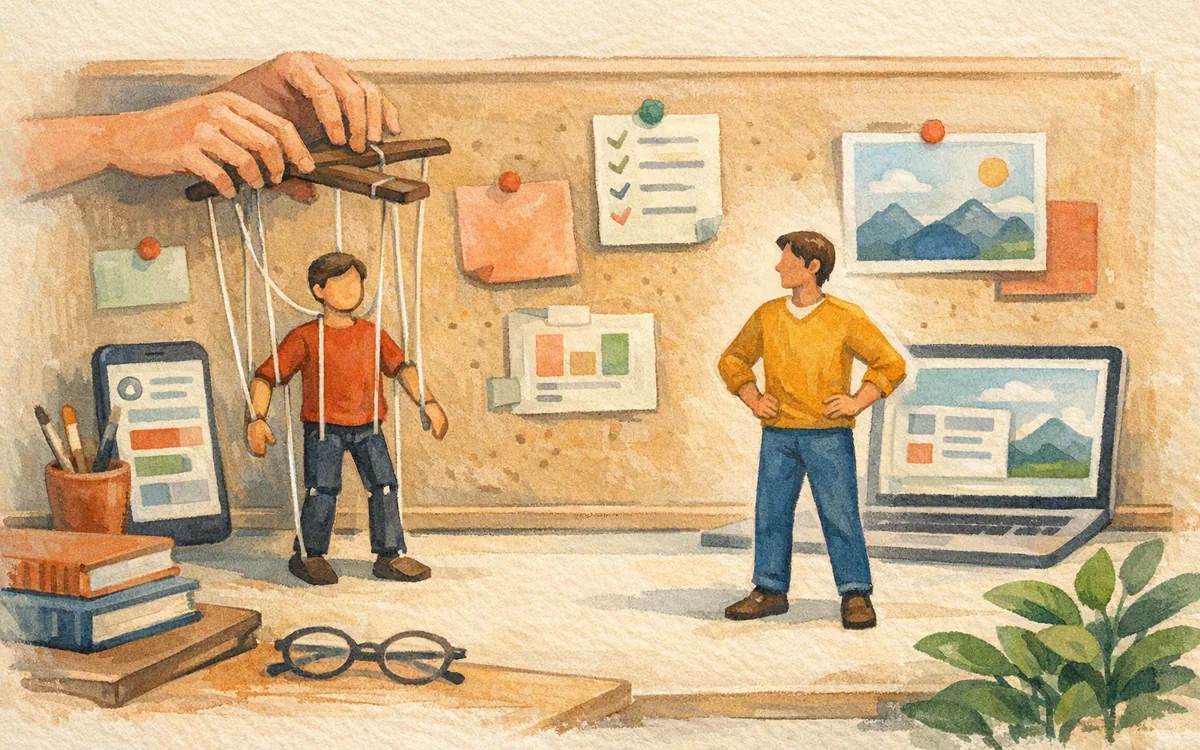
Google Stitch is a standalone AI interface-generation product. You describe what you want, supply any available visual direction, and evaluate generated UI. Its value is the rapid production of candidate screens and directions. You are asking, “What could this mobile app look like?”
MCP, short for Model Context Protocol, is a way for an AI client to communicate with tools and external context. In a Figma MCP workflow, an AI agent can be connected to Figma design information through an MCP server. Depending on the server, client, permissions, and capabilities configured by the team, the agent may inspect relevant file context and participate in changes to an existing file or workflow.
That distinction matters because MCP itself is not a screen generator, a component library, or a guarantee that an agent can edit every object safely. It is plumbing. The useful part is that the agent can operate with knowledge of the file you already maintain instead of working from a screenshot or a vague description.
This is why Figma MCP mobile design work is strongest when names, components, variables, and page structure are already reasonably disciplined. An agent cannot infer a reliable system from a file full of unnamed layers, detached instances, and six nearly identical buttons called “Button final final.” MCP exposes the context you have; it does not repair design debt by itself.
Why Stitch is faster for a greenfield mobile app
A greenfield project has no canonical source of truth. There may be a product requirements document, a competitor screenshot, and a founder’s explanation of the core flow. Requiring a clean Figma file before AI can be useful adds work at exactly the wrong time.
Google Stitch is faster here because the prompt is the starting artifact. You can ask for a mobile habit tracker with daily check-in, streak history, reminders, and a profile area, then judge the output against the job users need to complete. That gives you something concrete to react to: the hierarchy, navigation model, content density, and missing states.
Use that speed deliberately. Generate a small slice of the app rather than prompting for an entire product at once:
- •onboarding and permission rationale
- •the primary task screen
- •a list or history screen
- •an empty state
- •one error or blocked state
That five-screen slice reveals whether the visual direction can survive ordinary product conditions. A polished dashboard tells you little if the generated empty state has no next action or the onboarding screen asks for permissions without explaining why.
Stitch is not a replacement for a design system. Treat the output as a direction and a starting set of screens. Once a direction is chosen, establish the few repeated patterns that will govern the next 20 screens: top bars, primary actions, list rows, form fields, bottom sheets, loading behavior, and error treatment. Skipping that step creates a different-looking app one prompt at a time.
Where Figma MCP pays off: repeated changes across an existing screen set
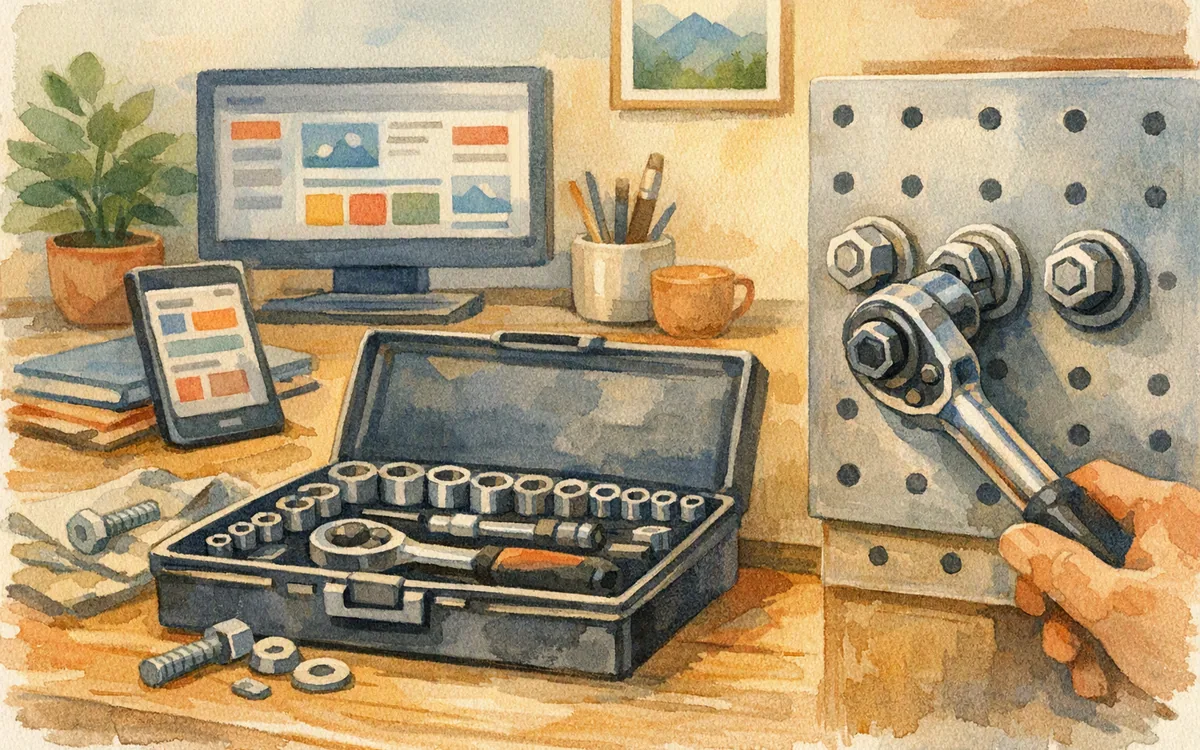
Figma MCP becomes compelling after the app has enough screens that manual coordination is the slow part. Think beyond a single “make this button blue” request. The valuable jobs are changes that must respect the existing structure across a set of related screens.
For example, your team changes “Projects” to “Spaces,” adds an account-status badge to a repeated header, or revises the copy and action order for a permission gate. In a maintained mobile file, that may touch onboarding, the home screen, search, details, settings, empty states, and a few edge flows. The work is not difficult in isolation. It is easy to miss three instances and ship an inconsistent experience.
A stitch mcp workflow does not have to be either-or. You can generate an early direction in Stitch, move the selected direction into Figma, and later use an MCP-connected agent where file-aware repetition is valuable. But the Figma phase needs guardrails. Ask for a scoped change, review the affected frames, and inspect component instances before accepting broad edits.
The third-day problem is over-broad instruction. “Make the app more premium” is tolerable when generating an exploratory concept. It is risky in a 90-screen production file. For MCP work, specify the scope: which pages, which component, what should remain unchanged, and what acceptance check applies. “Update the trial badge in all account headers; preserve compact-header spacing” is a workable request. “Clean up the UI” is not.
Setup complexity is the real dividing line for solo builders and established teams
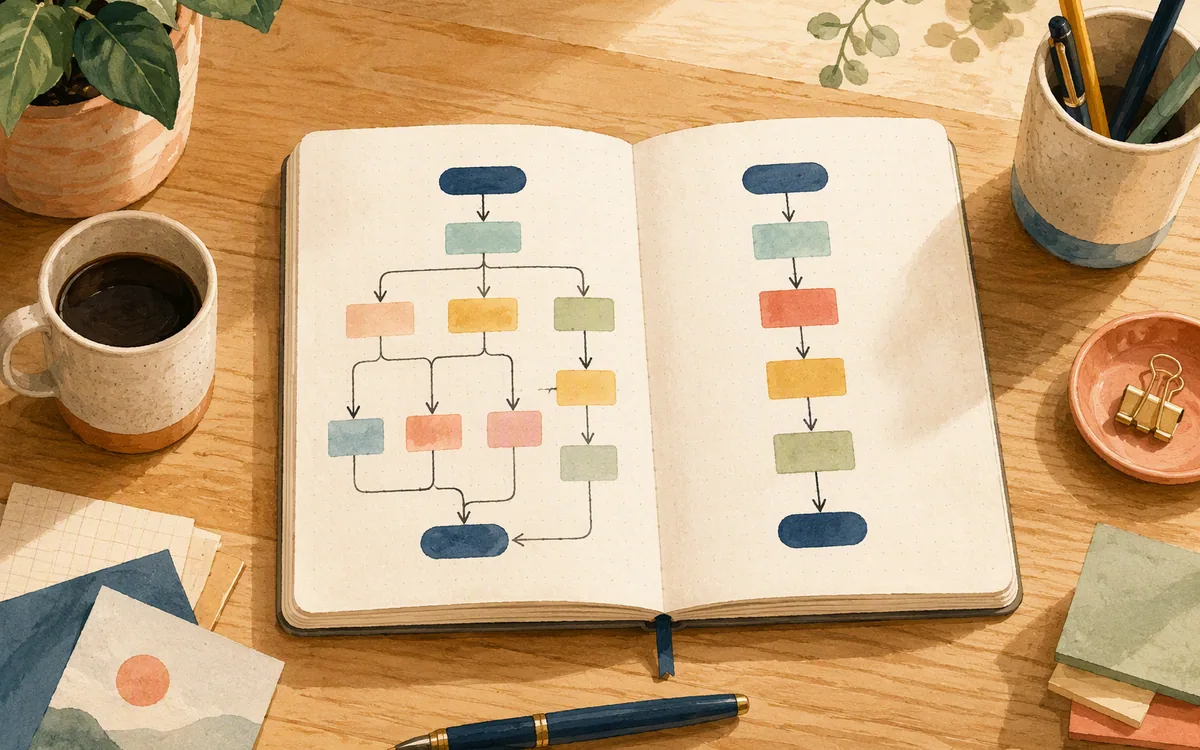
Google Stitch is realistic for a solo builder because the setup is close to the work itself: describe the product, generate screens, select a direction, and iterate. You do not need to organize an existing file before the first useful result. You still need taste and product judgment, but you are not also becoming the administrator of an AI-tool connection.
Figma MCP asks more of you before it becomes useful. You need an AI client that supports MCP, a Figma-compatible MCP connection or server, authentication and permissions, and a clear understanding of whether the configured tools can read context, write changes, or both. Those details vary by implementation and can change, so verify current requirements in Figma’s and the MCP client’s documentation before committing a team workflow.
Then there is file readiness. A team gets the best result when components are actually reused, assets are findable, screens have meaningful names, and design decisions are not scattered between old pages. If your team cannot tell which of three “Checkout v2” frames is current, giving an agent access does not solve the governance issue.
That makes the buyer split simple. A founder assembling the first mobile prototype should choose Stitch over configuration. A product team with a design system, a large screen inventory, and frequent coordinated updates should invest in Figma MCP. A two-person team with a messy file sits in the middle: clean the core flow and component structure first, then decide whether MCP automation has enough repeated work to justify the setup.
Choose by project stage, not by the AI feature that looks most impressive in a demo
Use Google Stitch during discovery and early definition. It is suited to turning a product brief into screens, testing two information hierarchies, or giving stakeholders a concrete direction to discuss. At this stage, speed matters more than preserving a source-of-truth file because no trustworthy source of truth exists yet.
Use Figma MCP during systemized production work. It is suited to a design team that has already chosen its patterns and must carry those patterns through a growing app. The more often a change repeats across screens, the stronger the case for file-aware automation.
A practical mobile-app sequence looks like this:
- •Generate 5–8 core screens for one user journey in Stitch.
- •Select one direction based on task completion, not visual novelty.
- •Establish reusable mobile patterns in Figma for the chosen direction.
- •Expand the flow to include loading, empty, error, permission, and long-content states.
- •Bring MCP into the workflow when recurring changes span enough screens to make manual edits unreliable.
Do not reverse the order just because MCP sounds more technical. Connecting an agent to a half-formed Figma file often creates cleanup work rather than saving it. Similarly, do not remain in generator mode after the product starts accumulating states. At that point, each new generated screen can drift from the previous one.
The handoff point is visible: once a change request begins with “update this everywhere,” you are entering Figma MCP territory. Until then, the faster generator usually has the better return on your time.
The honest limitation: neither option removes design review or implementation work
Both workflows can produce work that looks farther along than it is. That is useful for momentum, but it can mislead a buyer into treating screens as a shippable interface.
With Google Stitch, review the generated mobile UI for platform fit. Check tap-target sizes, navigation conventions, keyboard behavior, safe areas, destructive actions, permission explanations, dynamic text length, and the states that appear on a poor network. A single attractive iOS-style screen is not proof that the Android version has a coherent pattern, and the reverse is also true.
With Figma MCP, the risk shifts from invention to propagation. An agent can carry a flawed instruction through many places quickly. Review the diff in human terms: Which frames changed? Which component variants changed? Did a compact variant inherit desktop-like spacing? Did a text replacement alter a string that has a different meaning in settings than it does in onboarding?
Neither Google Stitch nor Figma MCP is an IDE, a full interaction-prototyping suite, or a substitute for product acceptance criteria. They help create and modify interface artifacts. Engineers still need implementation decisions, and designers still need to decide whether the flow works.
For solo founders who do not want to configure an MCP server or maintain an existing Figma file, floow.design offers the more direct route: describe the mobile app, iterate on screens by chat, and export to Figma or mobile code targets. It is the better starting point when the immediate need is an app-screen direction rather than a connected Figma automation workflow.
Google Stitch vs Figma MCP for mobile app design work
| Workflow | Best project stage | What you start with | Where it saves the most time | Main constraint |
|---|---|---|---|---|
| Google Stitch | Discovery and early product definition | A plain-English app description and visual direction | Generating first-pass mobile screens and exploring alternatives | Output still needs systemization and design review |
| Figma MCP | Established design and iteration | An existing Figma file plus an MCP-capable AI setup | Repeated, file-aware work across related screens | Setup, permissions, and file quality determine usefulness |
| floow.design | Solo-founder discovery through early build handoff | A plain-English mobile app description | Generating and iterating on mobile screens by chat, then exporting to Figma or code | Not a replacement for complex interactive prototyping or an IDE |
What it costs
Do not choose based on an old price screenshot. Google Stitch access and plan terms, Figma plan requirements, and any AI client or MCP-server costs can change. In practice, Stitch concentrates spend around AI generation access; a Figma MCP workflow may combine Figma access with the AI client and any relevant server or team tooling. Check each vendor’s current published pricing and permissions before rolling the workflow out to a team.
Mistakes that cost you the most
Using Figma MCP before there is a trustworthy Figma source of truth.
First consolidate the current flow, name the relevant pages, and ensure core components are reused. Then start with one narrow recurring change.
Asking a generator for the whole app in one prompt.
Generate one 5–8 screen journey, including an empty or error state. Choose a direction before expanding the screen count.
Assuming MCP always means an agent can edit anything in Figma.
Confirm the exact server capabilities, AI client behavior, authentication model, and write permissions in your configured setup.
Reviewing only the hero screens.
Review permissions, loading, empty, error, long-text, and destructive-action states before treating a direction as ready for implementation.
Frequently asked questions
What is Figma MCP used for?
Figma MCP is used to connect an AI agent to Figma design context through the Model Context Protocol. It is most useful for work on an existing mobile product file: finding relevant screens or components, understanding established patterns, and helping carry a scoped change across repeated UI. The exact read or write abilities depend on the MCP server, AI client, and permissions your team has configured.
Is Google Stitch connected to Figma?
Google Stitch can be used with Figma through its available export or handoff options, so a generated direction can move into a Figma workflow. That is different from Figma MCP. Stitch is not the same thing as a live, file-aware MCP connection that gives an AI agent ongoing context from an existing Figma file. Verify the current export behavior in Google Stitch before planning a production handoff.
Do I need a Figma file already to use MCP?
For Figma MCP to be useful, you generally need Figma design context for the AI agent to work from, which usually means an existing file, relevant pages, or an established component set. You can configure MCP without a mature file, but it offers little advantage if there are no screens or patterns to inspect. A standalone generator is usually faster for a brand-new mobile app.
Which is easier to set up, Stitch or Figma MCP?
Google Stitch is easier to set up for most people because you can begin with a product description instead of an existing Figma file and an MCP connection. Figma MCP requires an MCP-capable AI client, connection setup, authentication, permissions, and a file worth using as context. The extra setup is justified for teams making repeated changes across a maintained mobile screen set.
Should a solo founder use Google Stitch or Figma MCP for a first app prototype?
A solo founder should usually use Google Stitch for a first mobile app prototype because it starts from a description and produces screens without requiring a maintained Figma file or MCP-server setup. Use Figma MCP later if the prototype becomes a substantial Figma system with frequent repeated edits. If you want chat-based mobile screen generation with Figma and code export, floow.design is another direct starting route.
Where this leaves you
Choose Google Stitch if you need to make the first mobile flow visible this week. Choose Figma MCP if the flow already exists in Figma and the team is losing time to repeated, coordinated edits. The winner for greenfield work is Google Stitch; the winner for mature file automation is Figma MCP. Start with the bottleneck you actually have, not the integration architecture you hope to need later.
Design the screens before you commit to a tool
Solo founders who don't want to configure an MCP server or maintain an existing Figma file get a comparable outcome faster starting directly in floow.
If that is roughly your situation: describe the app in plain English and floow.design draws the iOS and Android screens, takes your changes by chat, and exports the result to Figma or to Flutter, React Native, SwiftUI and Jetpack Compose.
Free tools you can use right now
- •Phone Mockup Generator — free, no sign-up
- •App Development Cost Calculator — free, no sign-up
- •Device Size Reference — free, no sign-up
Related reading
Design your mobile app with AI.
Generate pixel-perfect iOS and Android screens in seconds, then export to Figma or code.
You might also like…
 Insights24 September 2026Google Stitch vs Adobe XD: Mobile app costCompare Google Stitch and Adobe XD costs for a 10-screen mobile app, including credits, Creative Cloud access, Figma export, and iteration risk.By floow.design Team, Mobile Design
 Guides24 September 2026Balsamiq Alternative for Higher Fidelity DesignMove beyond sketch-style wireframes without losing the flow work your team already did. Compare Figma, Google Stitch, and Uizard.By floow.design Team, Mobile Design
 Guides24 September 2026Design Tool for Developer Handoff: Buyer's GuideChoose a design tool for developer handoff by testing specs, states, code output, and platform fit—not by judging the prettiest demo.By floow.design Team, Mobile Design