
Color contrast for Pakistani mobile app UI
A practical checklist for color contrast in Pakistani mobile apps: bilingual Urdu testing, WCAG 2.2 targets, sunlight checks and Android review.

Color contrast for Pakistani mobile app UI should be checked against WCAG 2.2, then verified with both English and Urdu labels on Android phones used locally. Test green-and-white controls in direct sunlight, check small Urdu joined letterforms separately, and retain evidence for reviews against Pakistan’s ICT Accessibility Standards issued by the Ministry of IT and Telecommunication.
Key takeaways
- •Use WCAG 2.2 contrast targets as the measurable baseline, then record how each target is applied for Pakistani public-sector accessibility review.
- •Test English and Urdu independently: Urdu is right-to-left and joined letterforms can become unclear at small sizes even when a contrast checker passes.
- •Do not approve Pakistan-green palettes from desktop mock-ups alone; test filled, outlined and disabled controls on low-cost Android screens and outdoors.
- •Build high-contrast alternatives first, then compare bilingual labels and states before locking a UI direction.
What's on this page
- •Checklist: set the contrast baseline before choosing the palette
- •Checklist: test English and Urdu labels as separate interface cases
- •Checklist: stress-test Pakistan green, white and outdoor Android conditions
- •Checklist: review the actual Android screen, then hand off the chosen direction
Checklist: set the contrast baseline before choosing the palette
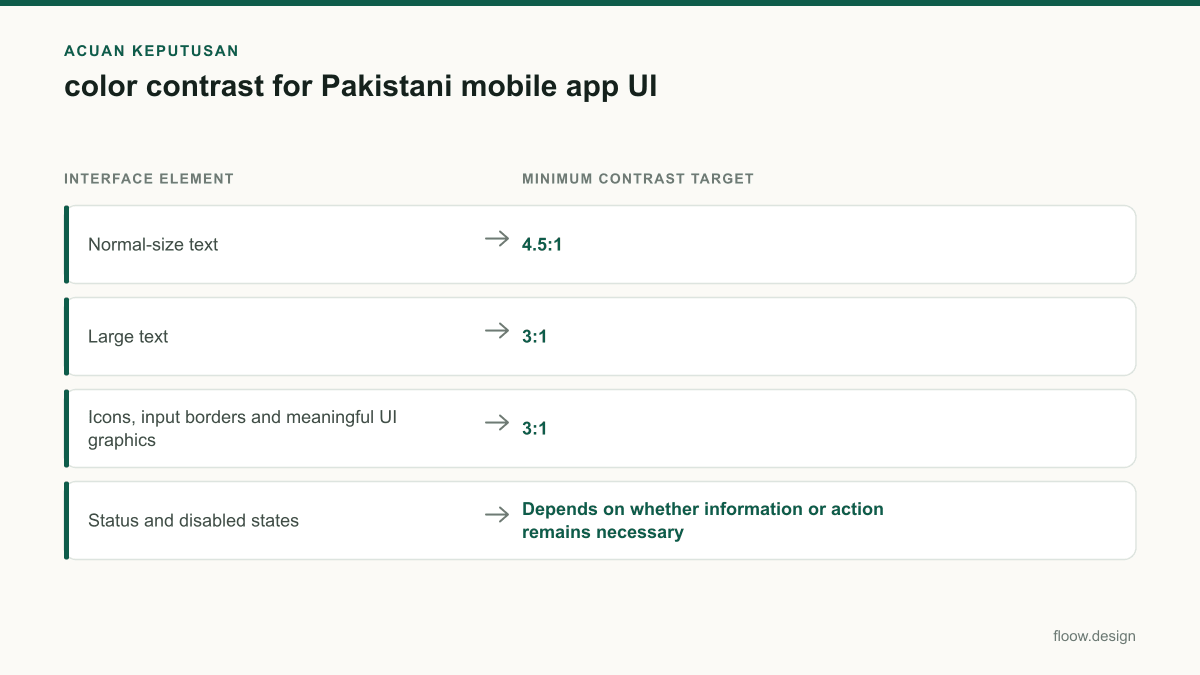
Start each mobile screen with WCAG 2.2 contrast targets: at least 4.5:1 for normal text, 3:1 for large text, and 3:1 for meaningful icons, input boundaries and other non-text UI components. Treat placeholder text, disabled states and secondary labels as design decisions, not exceptions; if people must read or act on them, confirm that they remain legible.
For work that may be assessed for a Pakistani public-sector service, document the target, foreground colour, background colour, component state and test result. This creates a clear record of how the design applies WCAG 2.2 alongside the ICT Accessibility Standards issued by Pakistan’s Ministry of IT and Telecommunication. Do not imply that a colour checker alone proves full compliance: focus order, labels, touch targets and state communication still need separate review.
Use the W3C’s WCAG 2.2 recommendation as the technical reference: W3C WCAG 2.2. Keep the local standards review traceable through the Ministry of IT and Telecommunication.
Checklist: test English and Urdu labels as separate interface cases
Put each production label into the screen in both languages before signing off the colour pair. English text is left-to-right; Urdu is written right-to-left, and its joined letterforms can lose clarity at small sizes. A ratio that is numerically valid can still feel weak when thin strokes, dots and joins sit against a tinted surface.
Test short, realistic UI strings rather than only headings: button verbs, account balances, error messages, tab labels, form hints and transaction statuses. Compare the same state in English and Urdu at the intended text size. Avoid compensating for an unclear Urdu label by shrinking it, reducing weight or placing it on a pale green tint. Increase contrast, use an appropriate text size and weight, or simplify the background instead.
Check RTL layout at the same time. Icons that convey direction, chevrons, back navigation and value alignment must be reviewed in the Urdu version; a readable label in the wrong visual order is still a failed task. This is especially important in compact payment and health flows, where a missed status or amount can change user action.
Checklist: stress-test Pakistan green, white and outdoor Android conditions
Green-and-white is a familiar visual association for many Pakistani brands, but it is not automatically an accessible pairing. Audit every green-and-white combination, especially pale green text on white, white text on a light green button, green outline buttons, selected chips, success banners and disabled controls. Avoid low-contrast tint-on-white controls that look acceptable on a calibrated desktop display but disappear under glare.
Test at normal brightness and reduced brightness, then inspect the screen outdoors or under strong ambient light. Review with display colour settings left at their ordinary defaults, and include lower-cost Android hardware from the local target audience rather than only a recent flagship. Compression, modest panel brightness and reflections can make close colour values merge.
Use recognisable app patterns as practical benchmarks without copying their screens: test a healthcare booking flow comparable to Sehat Kahani, a balance or transfer confirmation comparable to JazzCash, and product, price and delivery-status cards comparable to Daraz Pakistan. On Android devices common in the local market, verify default, pressed, selected, error, success and disabled states for each pattern. Reference the products’ official sites when defining realistic tasks: Sehat Kahani, JazzCash and Daraz Pakistan.
Checklist: review the actual Android screen, then hand off the chosen direction
Do not finish testing in a design file. Install or preview the screen at its target density on Android, open it under realistic brightness, and compare the rendered pixels with the intended tokens. Android’s accessibility guidance is useful for checking text, controls and contrast-related implementation details: Android Developers accessibility.
Run this final sequence for every key screen:
- •Check the WCAG contrast ratio for each text, icon and component boundary pair.
- •Read English labels at their production size.
- •Switch to Urdu, confirm RTL arrangement, and inspect joined letterforms and dots.
- •Review green-and-white, error and disabled states in bright ambient light.
- •Repeat on representative low-cost Android devices used by the intended Pakistani audience.
- •Save the measured values and screenshots with the screen’s accessibility notes.
Create high-contrast screen alternatives in floow.design and compare bilingual labels before exporting the chosen UI direction. Keep the selected palette and its fallback variant as reusable design tokens, so a later feature does not reintroduce faint text or tint-on-white controls.
WCAG 2.2 contrast checkpoints for Pakistani mobile UI review
| Interface element | Minimum contrast target | Pakistan-specific review step |
|---|---|---|
| Normal-size text | 4.5:1 | Check English and Urdu labels separately at their actual mobile size. |
| Large text | 3:1 | Confirm the Urdu version remains clear; joined forms may need more visual separation. |
| Icons, input borders and meaningful UI graphics | 3:1 | Check pale green outlines and white-background states outdoors on representative Android devices. |
| Status and disabled states | Depends on whether information or action remains necessary | Do not rely on a faint green tint alone; use a distinct label, icon or boundary as needed. |
Common mistakes
Approving a green-and-white palette because the brand green looks strong in a logo.
Measure every text, icon and border pairing. Use a darker green, darker text, a filled control or a neutral background when a pale tint fails.
Running one contrast check on English copy and assuming the Urdu translation is covered.
Render Urdu at production size and test it separately in RTL. Inspect joined letterforms, dots, line wrapping and directional icons.
Testing only on a designer’s bright, high-quality desktop display or flagship phone.
Review rendered Android screens at ordinary brightness, under glare, and on representative lower-cost devices in the target audience.
Treating disabled styling as permission to make critical information unreadable.
If a status, reason or next step must be understood, preserve legibility and add a textual explanation rather than relying on a faint visual state.
Frequently asked questions
What color contrast ratio should a mobile app use?
A mobile app should use WCAG 2.2 contrast of at least 4.5:1 for normal text, 3:1 for large text, and 3:1 for meaningful non-text UI components such as icons and input boundaries. Check each interactive state separately, because a passing default button can fail in its disabled, selected or error state.
Does Urdu text need different contrast testing?
Urdu text needs separate contrast testing because it is right-to-left and its joined letterforms can lose clarity at small sizes. Use the same WCAG 2.2 ratio targets, but inspect the rendered Urdu label at its final size, weight and line length. Check dots, joins, wrapping and RTL icon placement on the actual Android screen.
Can I use Pakistan green for buttons and still meet accessibility rules?
Pakistan green can be used for mobile buttons if the specific foreground and background pair meets the applicable WCAG 2.2 contrast target. White text on a dark enough green may pass, while pale green text or a light green outline on white often will not. Test default, pressed, disabled and outdoor viewing states, not just the main button.
How do I check color contrast on an Android screen?
Check color contrast on an Android screen by measuring the foreground and background colours against WCAG 2.2 targets, then viewing the rendered interface on a real device. Test normal and reduced brightness, strong ambient light, English and Urdu labels, and meaningful icons or borders. Android Developers’ accessibility guidance helps teams validate the implementation beyond a design-file check.
Where this leaves you
A passing ratio is the start of review, not the finish. For Pakistani mobile products, validate bilingual English–Urdu copy, green-and-white states, outdoor readability and representative low-cost Android rendering. Create high-contrast alternatives in floow.design, compare the bilingual labels, and export the direction that remains clear in the conditions people actually use.
Design the screens first
Describe the app in plain language and floow.design draws the iOS and Android screens for you, ready to refine and hand off.
Sources
- •W3C — Web Content Accessibility Guidelines (WCAG) 2.2
- •Pakistan Ministry of IT and Telecommunication
- •Android Developers — Accessibility
- •Sehat Kahani
- •JazzCash
Related reading
Design your mobile app with AI.
Generate pixel-perfect iOS and Android screens in seconds, then export to Figma or code.
You might also like…
 How-to21 September 2026Design brief for a Pakistani mobile appUse this Pakistan-ready design brief checklist to define PKR pricing, Raast and wallet payments, Urdu content, compliance, and app screens.By floow.design Team, Mobile Design
 How-to20 September 2026how to start freelancing in pakistan: UI checklistA practical checklist for Pakistan-based UI designers: build a three-screen sample, package mobile deliverables, quote clearly, and collect payments.By floow.design Team, Mobile Design
 How-to20 September 2026Raast payment: mobile app UI checklistA practical checklist for Raast transfer and merchant-payment screens, Raast ID handling, review states, receipts, and recoverable errors in Pakistan.By floow.design Team, Mobile Design